

Microsoft Copilot builds a mounting flange in Siemens NX
Copilot Studio drives Siemens NX through SphereHarness: a mounting flange with boss, bore and bolt holes, measured at 424,537 mm3, exported to STEP.

The video plays from YouTube’s privacy-enhanced player only after you click it.
Microsoft Copilot, built in Copilot Studio, created a mounting flange in Siemens NX on the author's own PC, measured it at 424,537.162 mm3 after the corner rounds, and exported it to STEP. The same Copilot agent then answered the same kind of request in Microsoft Teams.
What was asked
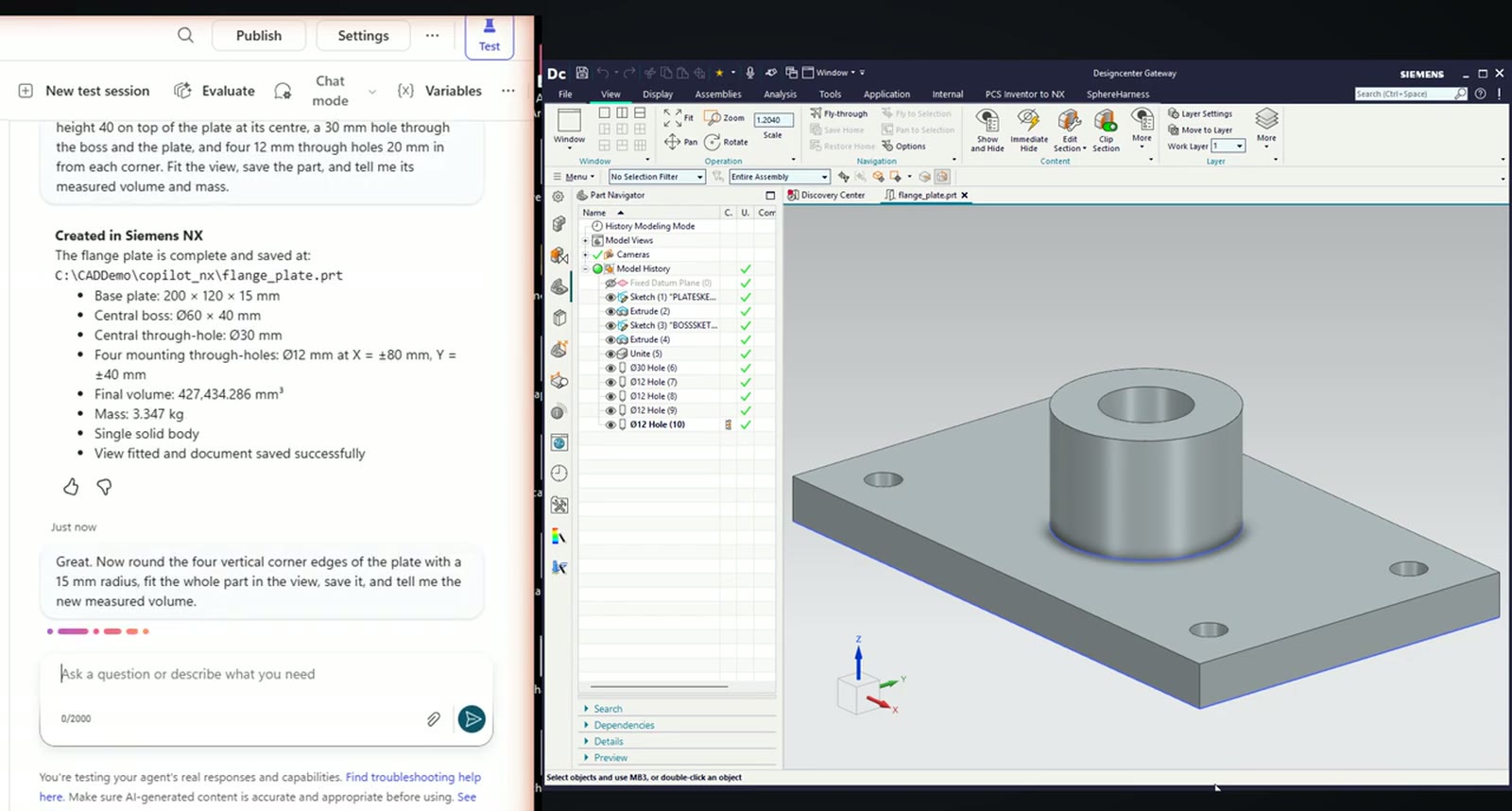
In the Copilot Studio test pane the first question is "Which CAD sessions are running on my PC?" The answer comes from the PC itself, and shows NX 2512 with no document open. Then the request: "In NX, create a new part C:\CADDemo\copilot_nx\flange_plate.prt and build a mounting flange: a 200 x 120 x 15 mm plate centred on the origin on the XY plane, a cylindrical boss of diameter 60 and height 40 on top of the plate at its centre, a 30 mm hole through the boss and the plate, and four 12 mm through holes 20 mm in from each corner. Fit the view, save the part, and tell me its measured volume and mass."
What the agent did
Copilot ran sketches, extrusions, a unite and five holes in NX, fitted the view and saved the part. NX measured 427,434.286 mm3 and 3.347 kg. The feature tree in the frame shows the Unite, one 30 mm hole and four 12 mm holes.
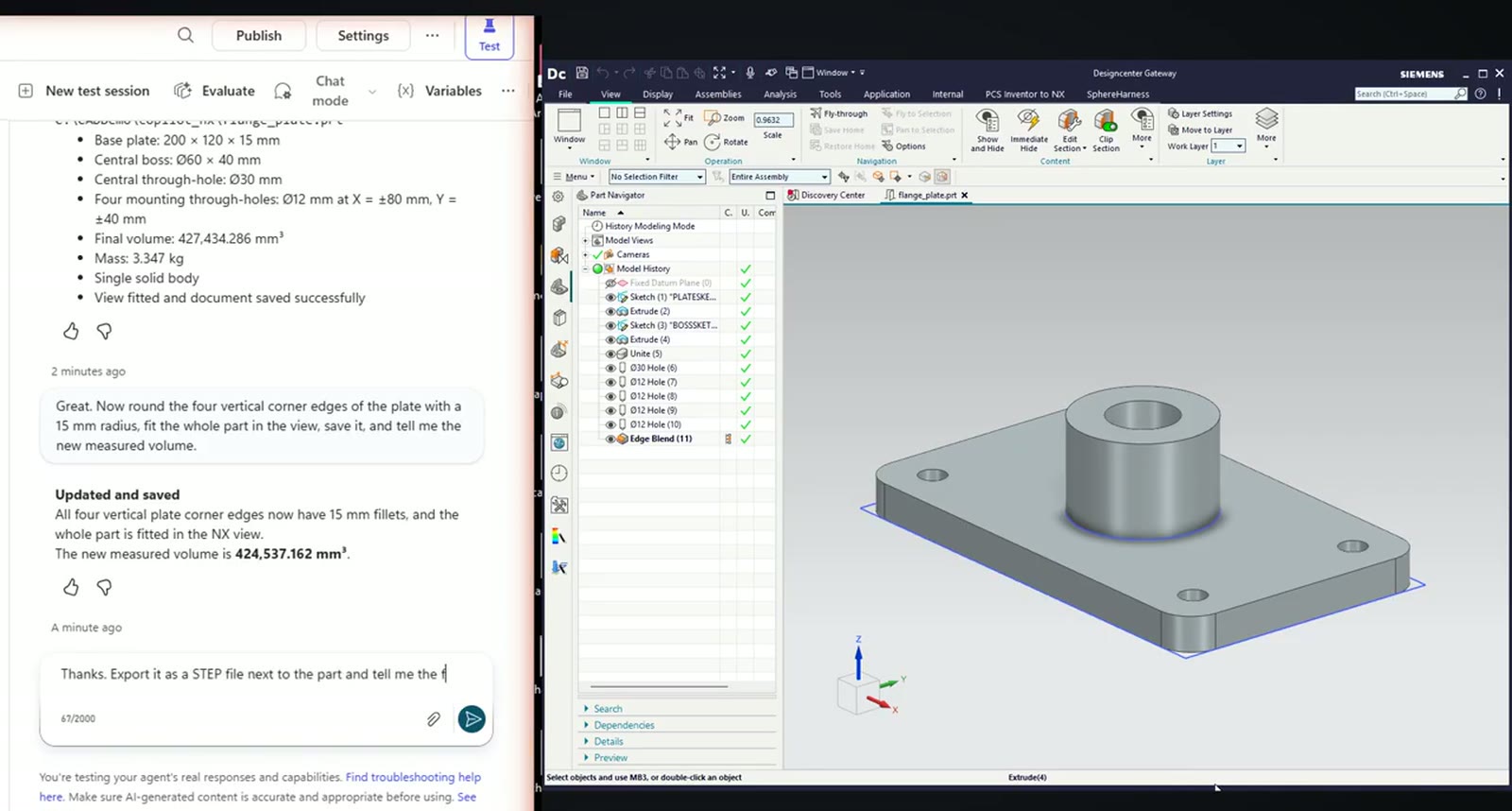
The next request rounded the four vertical corner edges with a 15 mm radius. NX added an Edge Blend, the part was saved, and Copilot reported a new measured volume of 424,537.162 mm3. A third request exported the flange as a STEP file next to the part; the reply gave its size as about 21 kilobytes.
Copilot in Teams
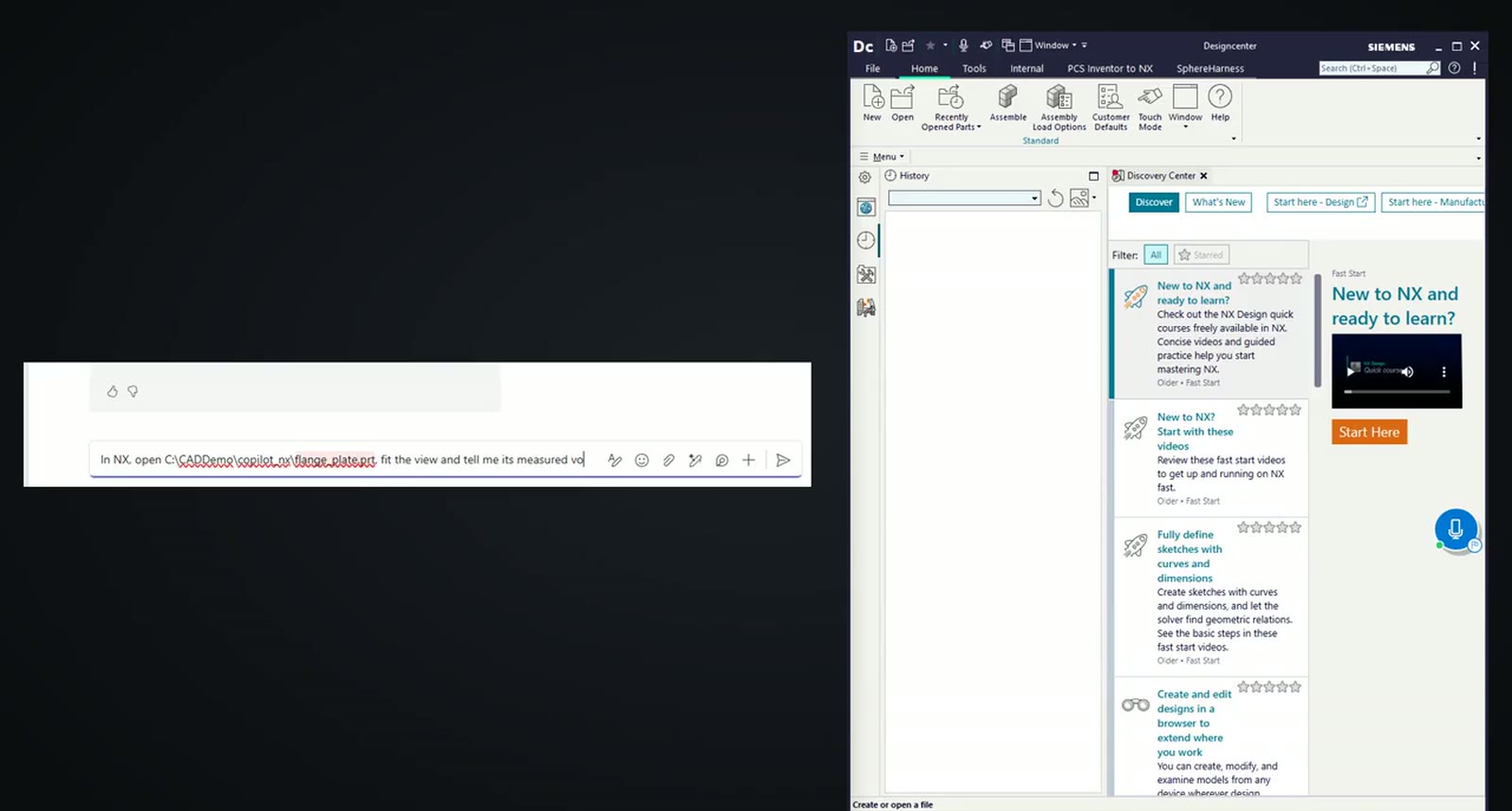
The Copilot agent is also published to Teams. The request typed there reads "In NX, open C:\CADDemo\copilot_nx\flange_plate.prt, fit the view and tell me its measured volume and mass."
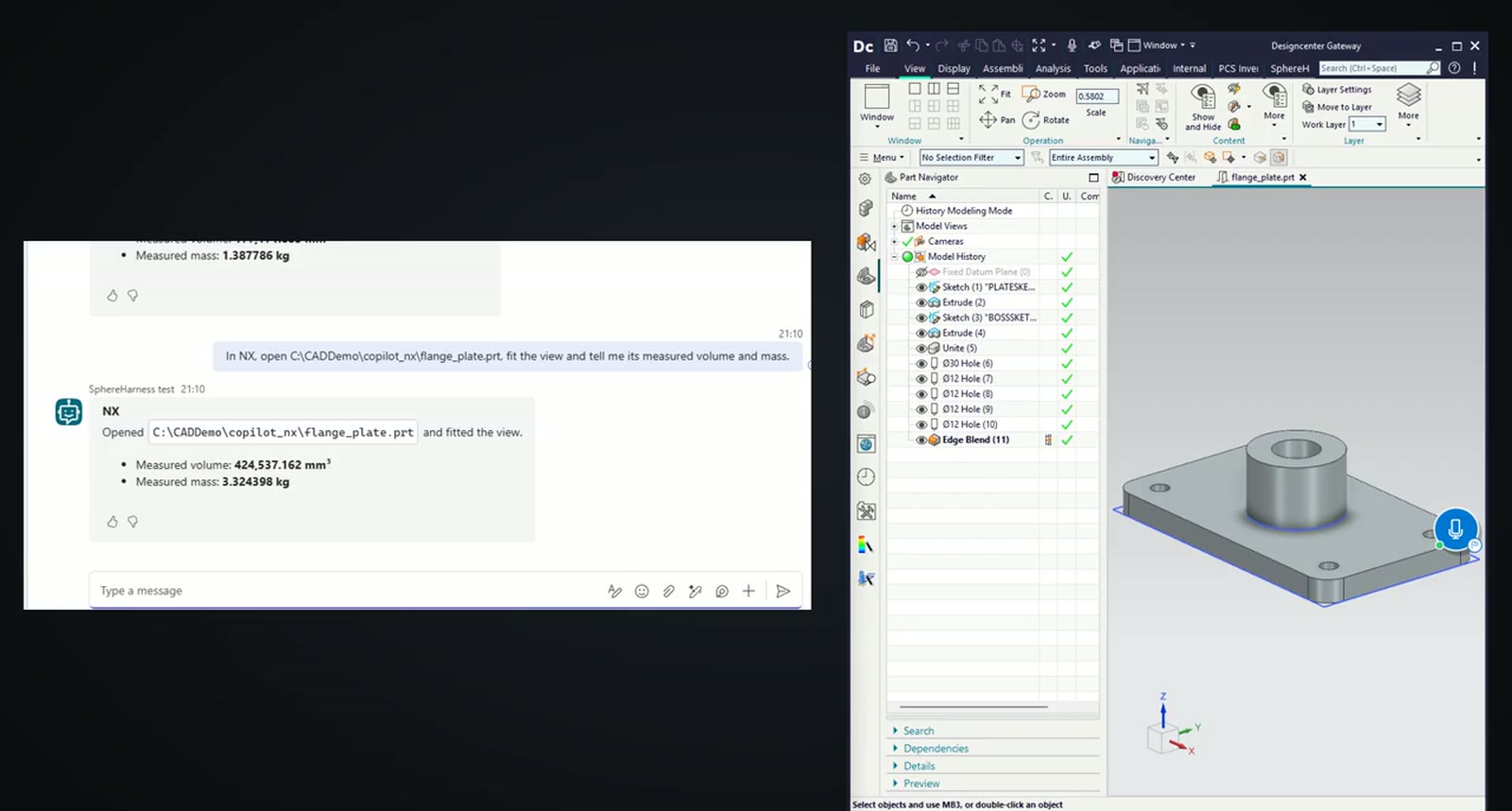
NX opens the part on the PC and the answer returns in Teams: 424,537.162 mm3 and 3.324398 kg.
How it is set up
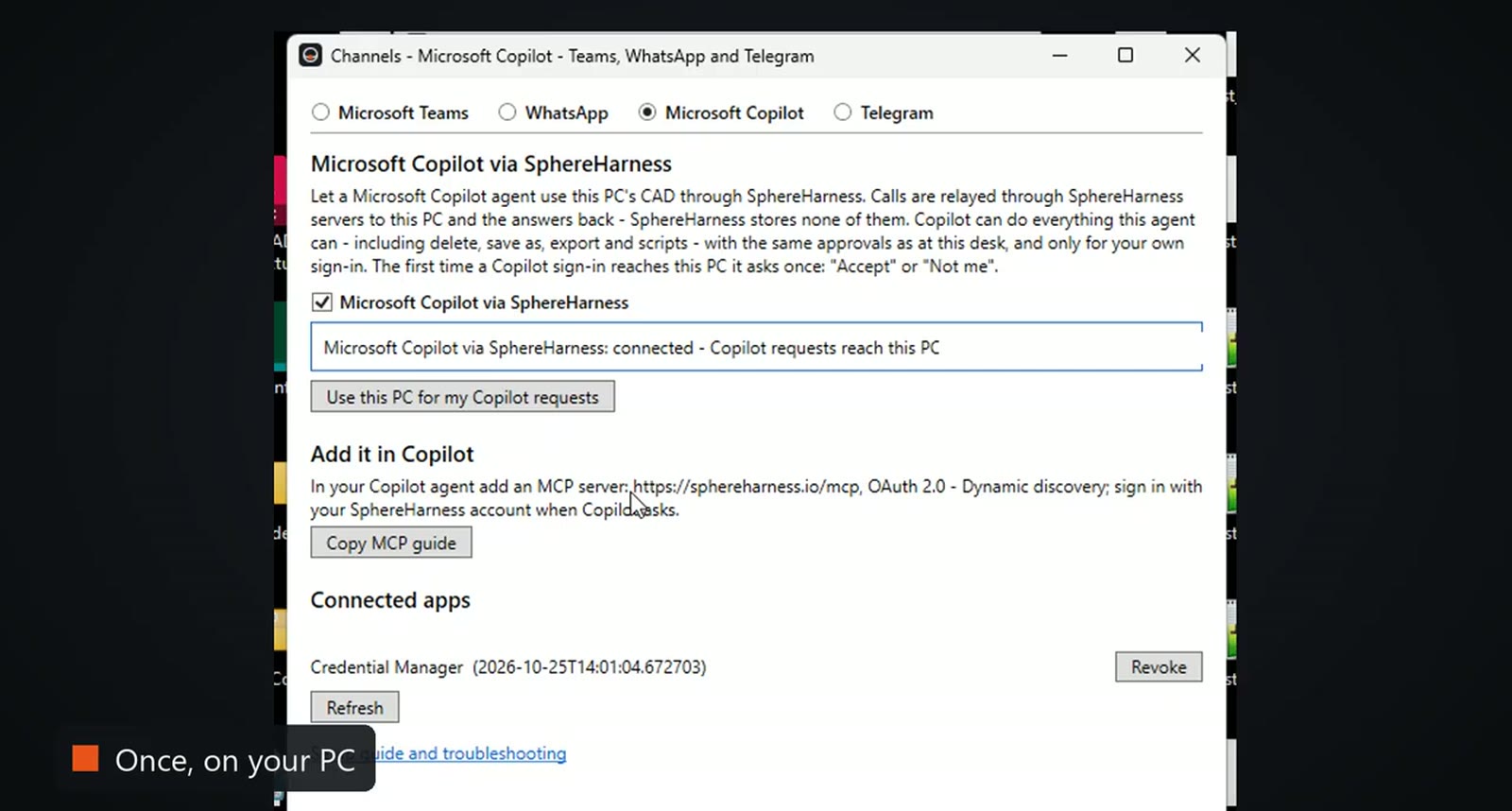
First, on the PC, open Channels in the SphereHarness desktop agent and switch on Microsoft Copilot via SphereHarness. The same window shows the MCP server address to add in Copilot.
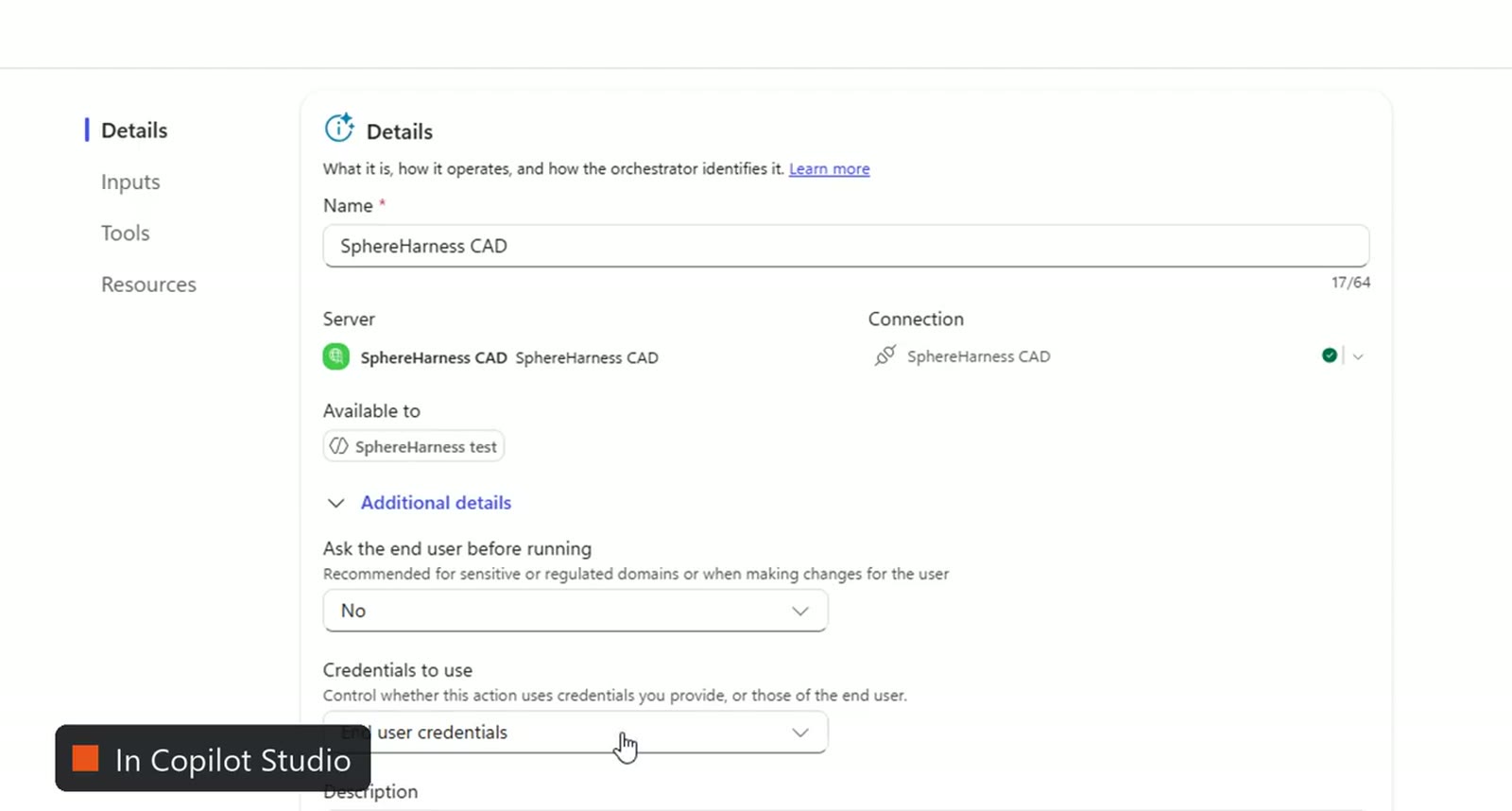
Second, in Copilot Studio add SphereHarness to the agent as a Model Context Protocol tool with OAuth sign-in, and keep credentials to use on end user credentials, so each person signs in with their own SphereHarness account. Third, on first use the sign-in page shows which Copilot agent is asking; tick "I accept" and choose Allow, and the PC asks once to Accept. The full guide is at /help/channels-copilot.
Try it yourself
The NX page is at /nx, and the first-run steps are in /help/getting-started.