

Microsoft Copilot builds a steel L-bracket in Solid Edge
Copilot Studio drives Solid Edge through SphereHarness: an L-bracket in steel with a 10 mm fillet, 177,171.683 mm3 measured, exported to STEP, also from Teams.

The video plays from YouTube’s privacy-enhanced player only after you click it.
Microsoft Copilot, built in Copilot Studio, created a steel L-bracket in Siemens Solid Edge on the author's PC, added a 10 mm fillet, measured 177,171.683 mm3 and 1.387786 kg, and exported it to STEP. The same Copilot agent then answered in Microsoft Teams.
What was asked
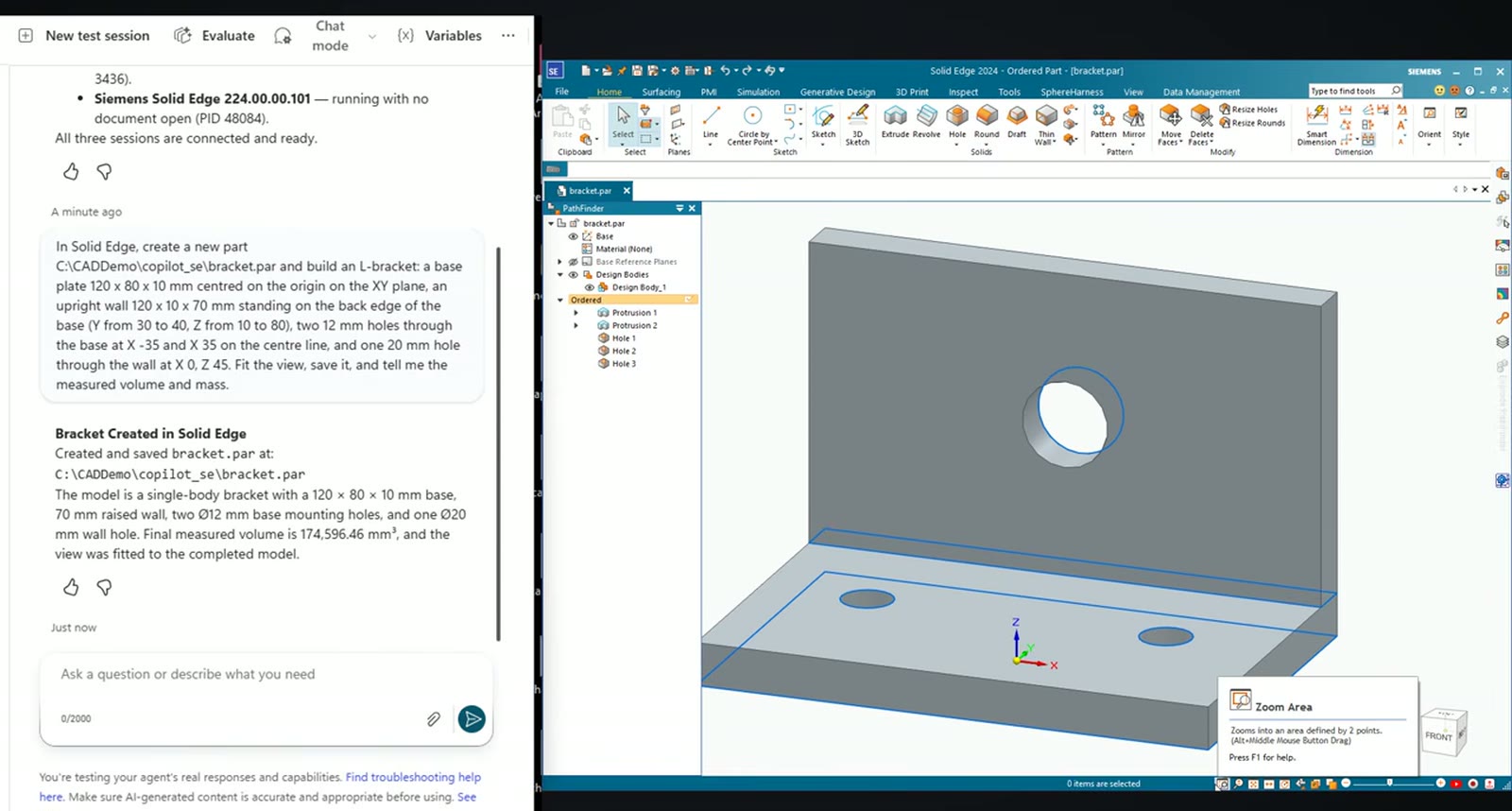
In the Copilot Studio test pane the first question asks which CAD sessions are running on the PC, and the answer comes from the PC itself; Solid Edge 224 is listed with no document open. The next request describes an L-bracket: a 120 x 80 x 10 mm base plate, an upright wall 70 mm high on its back edge, two 12 mm holes in the base and one 20 mm hole in the wall. It ends "Fit the view, save it, and tell me the measured volume and mass."
What the agent did
Copilot created the part, made the holes, fitted the view and saved it as bracket.par. The measured volume was about 174,600 mm3.
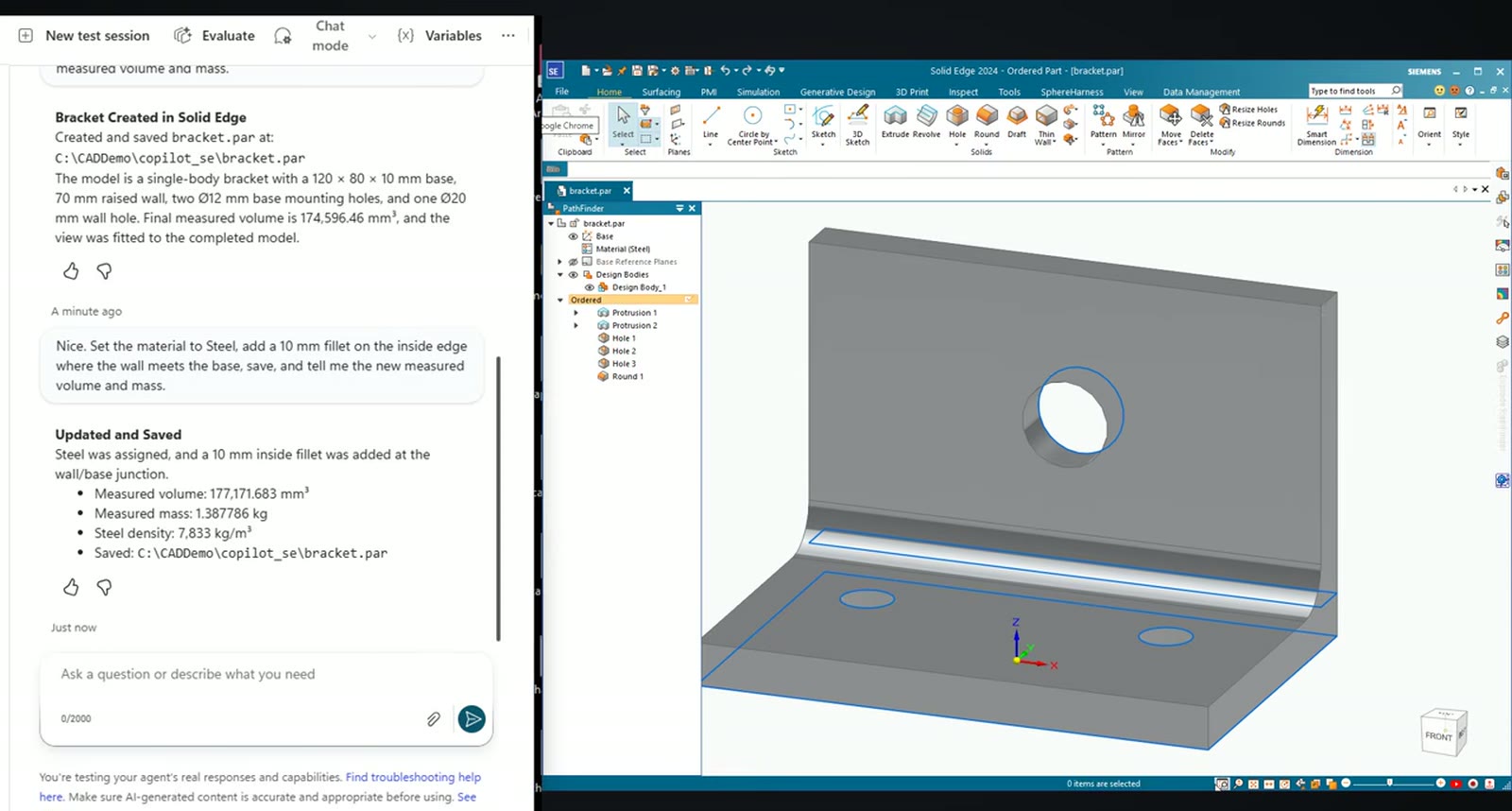
The follow-up reads: "Nice. Set the material to Steel, add a 10 mm fillet on the inside edge where the wall meets the base, save, and tell me the new measured volume and mass." Copilot answered with steel at 7,833 kg/m3, a volume of 177,171.683 mm3 and a mass of 1.387786 kg. A third request exported a STEP file next to the part, and the reply reported its size.
Copilot in Teams
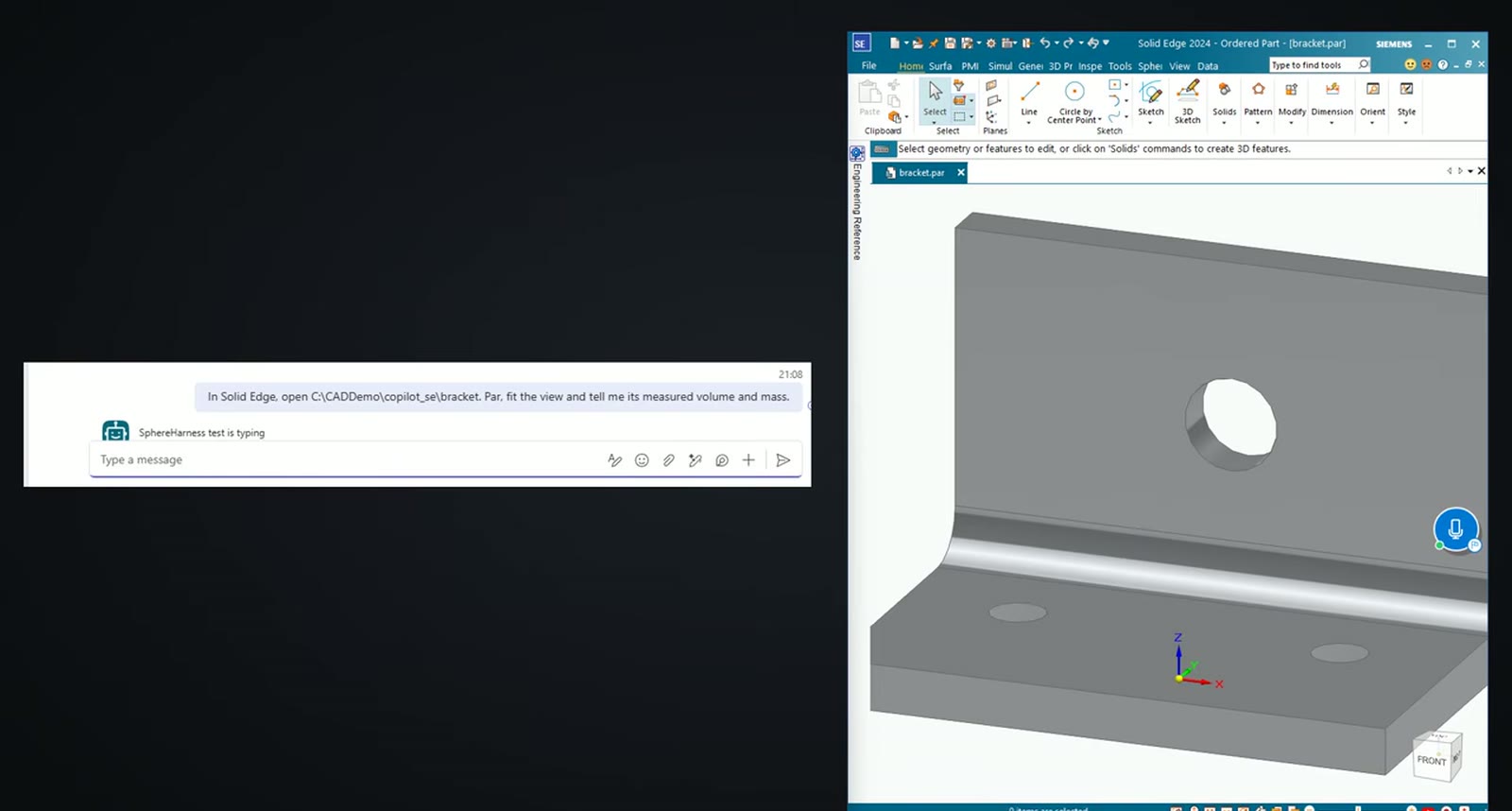
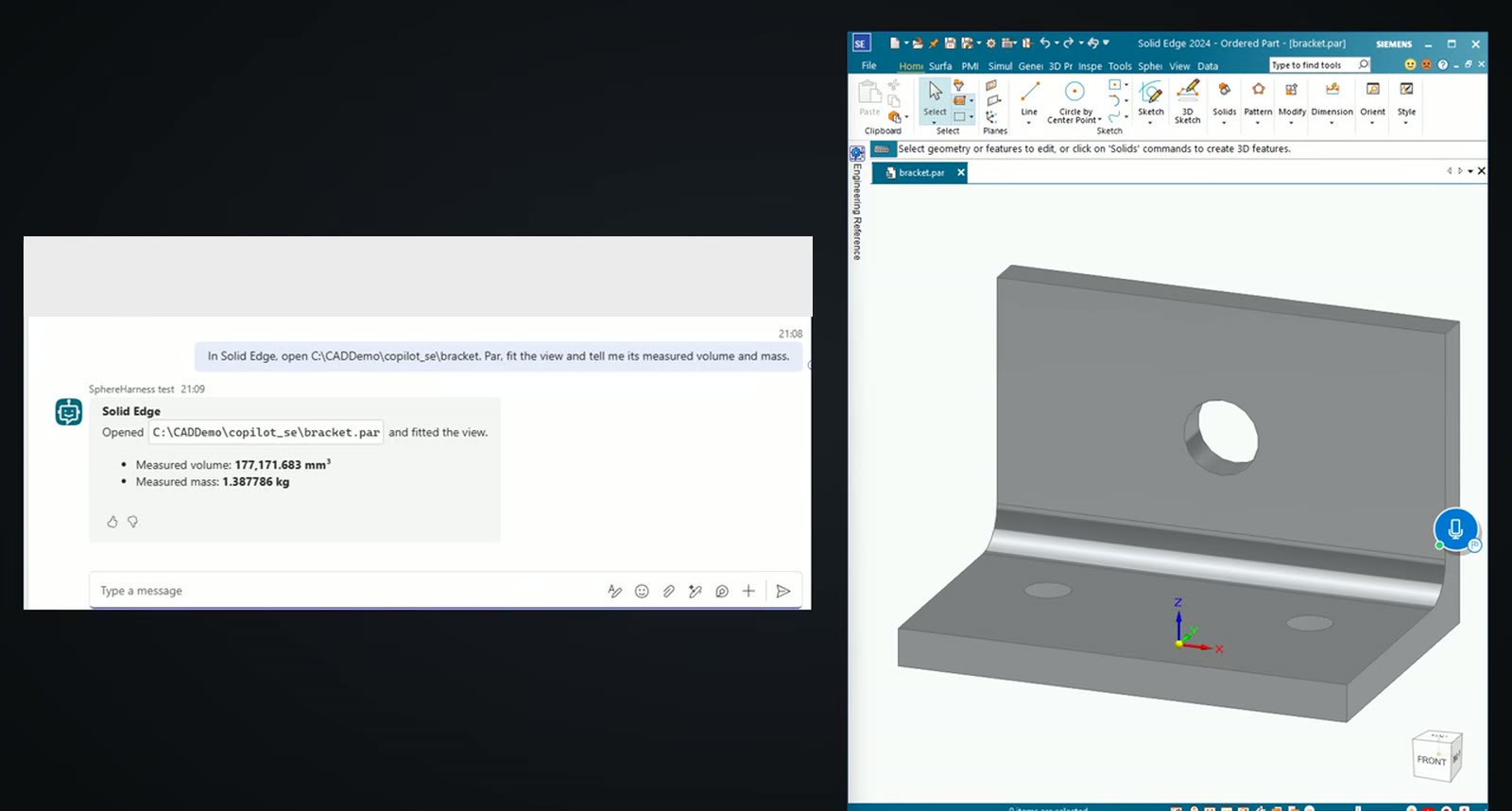
The Copilot agent is published to Teams, where the request reads "In Solid Edge, open C:\CADDemo\copilot_se\bracket.par, fit the view and tell me its measured volume and mass." Copilot called the same SphereHarness tool, Solid Edge opened the part on the PC, and the answer came back in Teams with the same volume and mass.
How it is set up
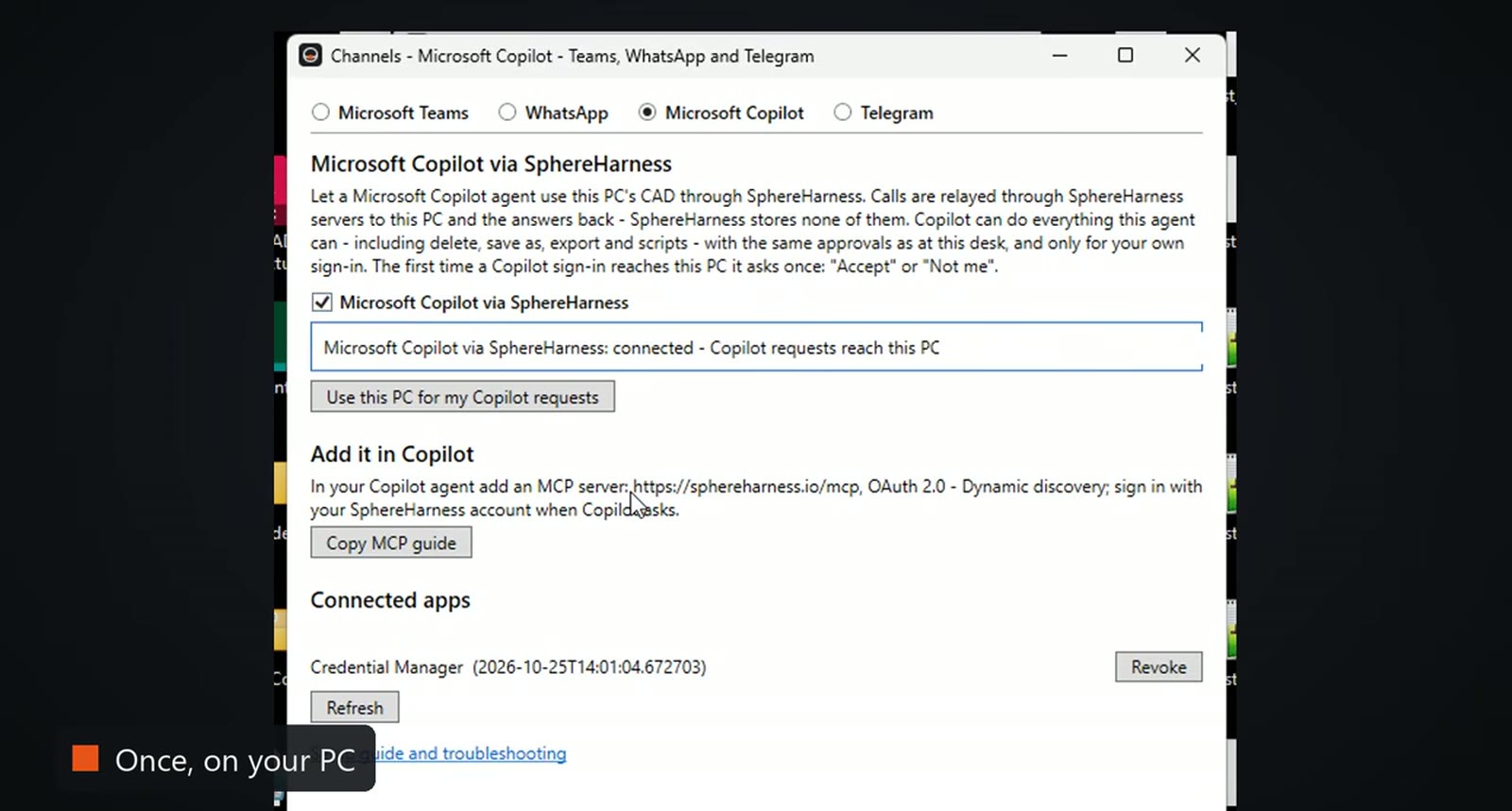
Step 1, on the PC: in the SphereHarness desktop agent open Channels and switch on Microsoft Copilot via SphereHarness. The window shows the MCP server address to add in Copilot.
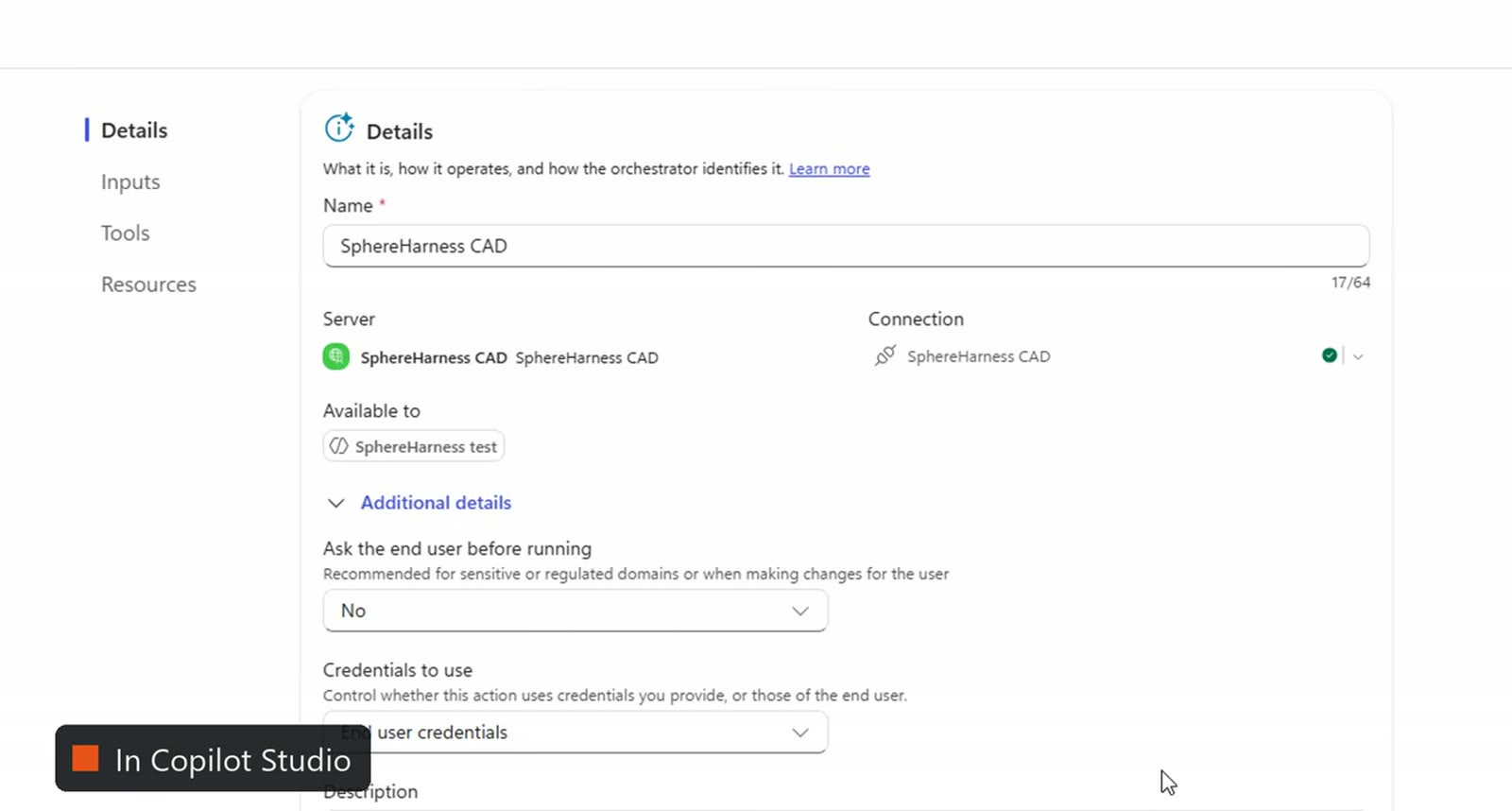
Step 2, in Copilot Studio: add SphereHarness as a Model Context Protocol tool with OAuth sign-in and keep credentials to use on end user credentials, so each person signs in with their own account and Copilot works only on that person's PC. Step 3: on first use tick "I accept" on the sign-in page and choose Allow; the PC then asks once to accept. The set-up guide is at /help/channels-copilot.
Try it yourself
The Solid Edge page is at /solid-edge, and the first-run steps are in /help/getting-started.