

Solid Edge folder work on a free AI model: material, BOM, Word, Teams
A free AI model changes 15 Solid Edge sheet metal parts to aluminium 6061, exports a BOM, builds an assembly from Excel and writes a 13.35 kg Word report.

The video plays from YouTube’s privacy-enhanced player only after you click it.
A free AI model changed 15 Solid Edge sheet metal parts to aluminium 6061 in one request, exported the bill of materials to Excel, built a new 30-component assembly from that file and wrote a Word report with a total mass of 13.35 kg. Everything ran through OpenCode with DeepSeek Flash, with no API key and no AI cost.
Find a part
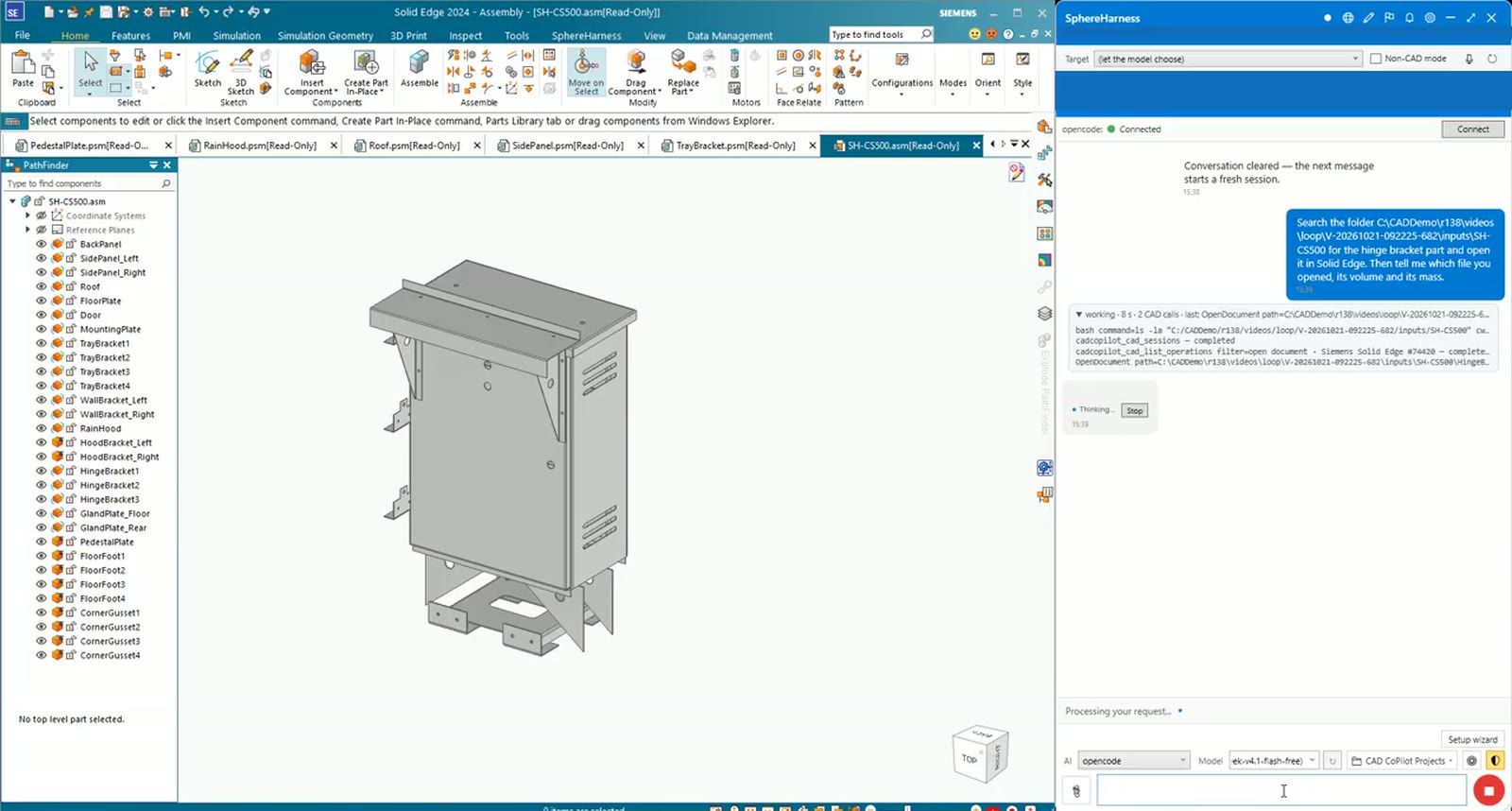
The first request asks SphereHarness to search the cabinet folder for the hinge bracket and open it in Solid Edge.
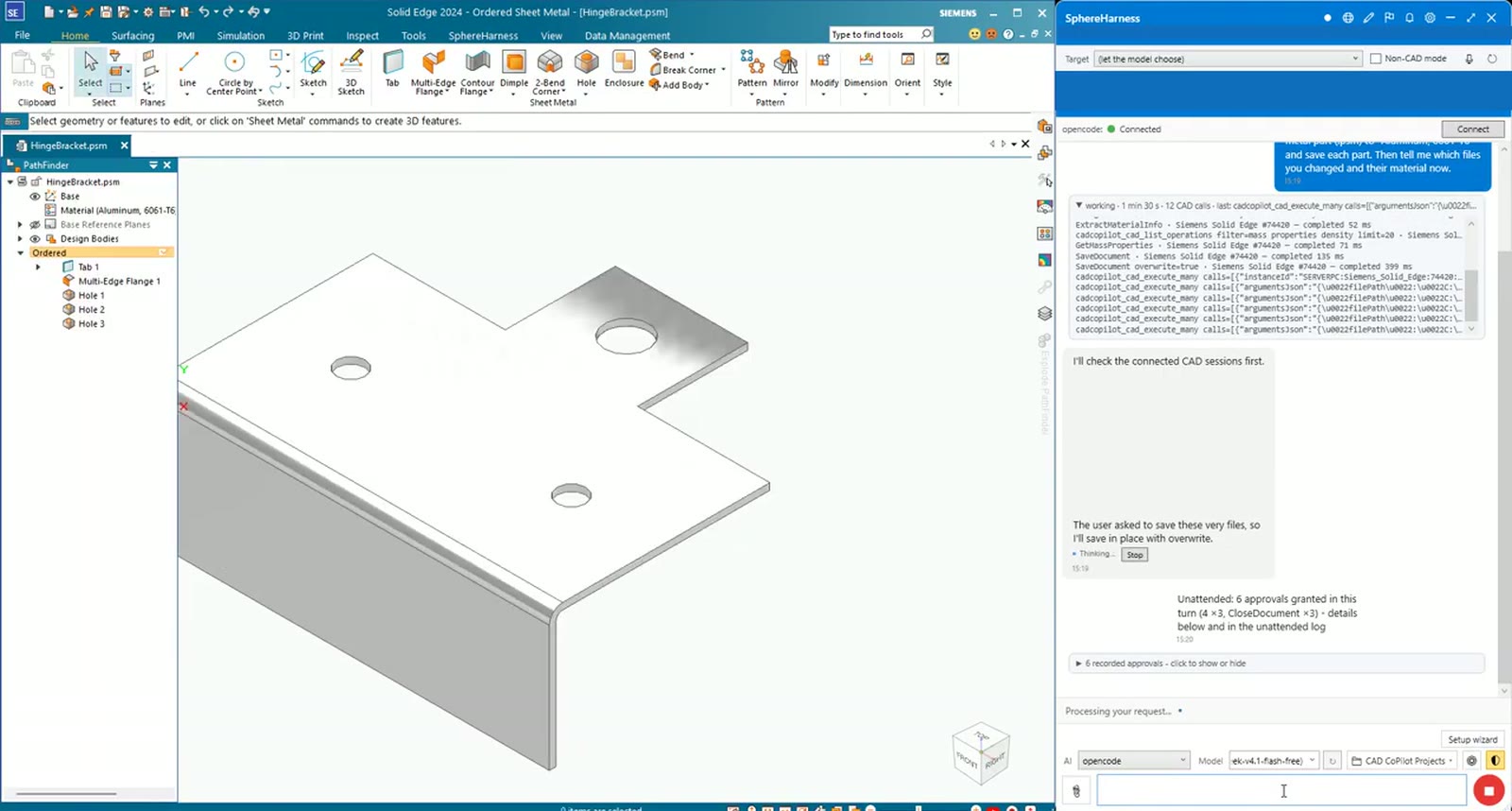
It searched the folder, opened the sheet metal part and read it back in 16 seconds: 11,577 mm3.
Change a whole folder
The next request changed every sheet metal part to aluminium 6061 and saved each one. The agent opened the 15 parts in turn, assigned the material and saved the file. It checked the result from the measured mass and volume: a density of 2,712 kg/m3 on all 15, which is aluminium 6061.
A report of the same folder followed, with file, material and mass read from each part without changing anything. The table lists all 15 parts in aluminium 6061.
Bill of materials, both directions
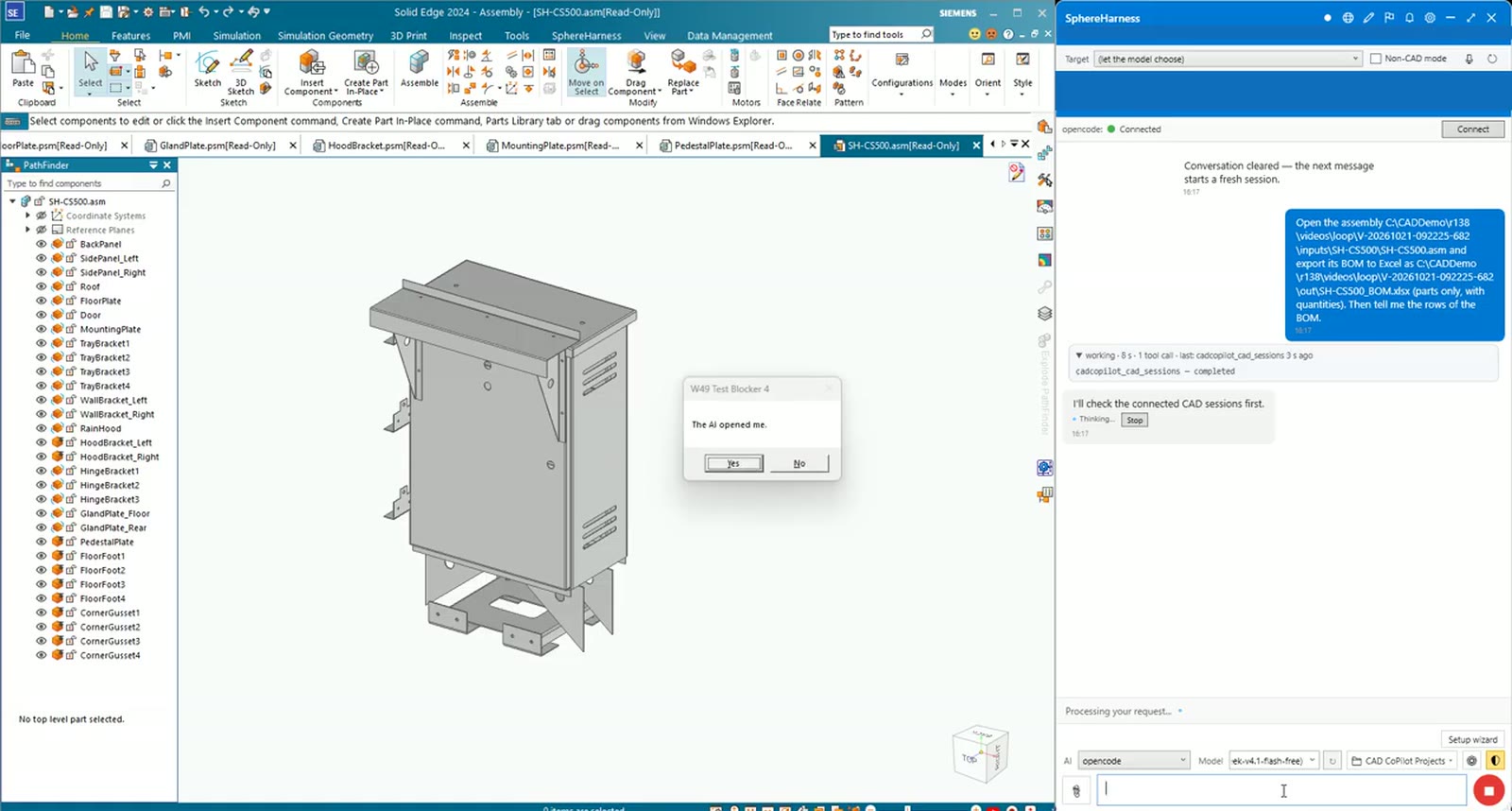
The agent opened the cabinet assembly and exported its parts list to Excel with quantities. The file was written in 43 seconds: 15 unique parts, 30 pieces in all.
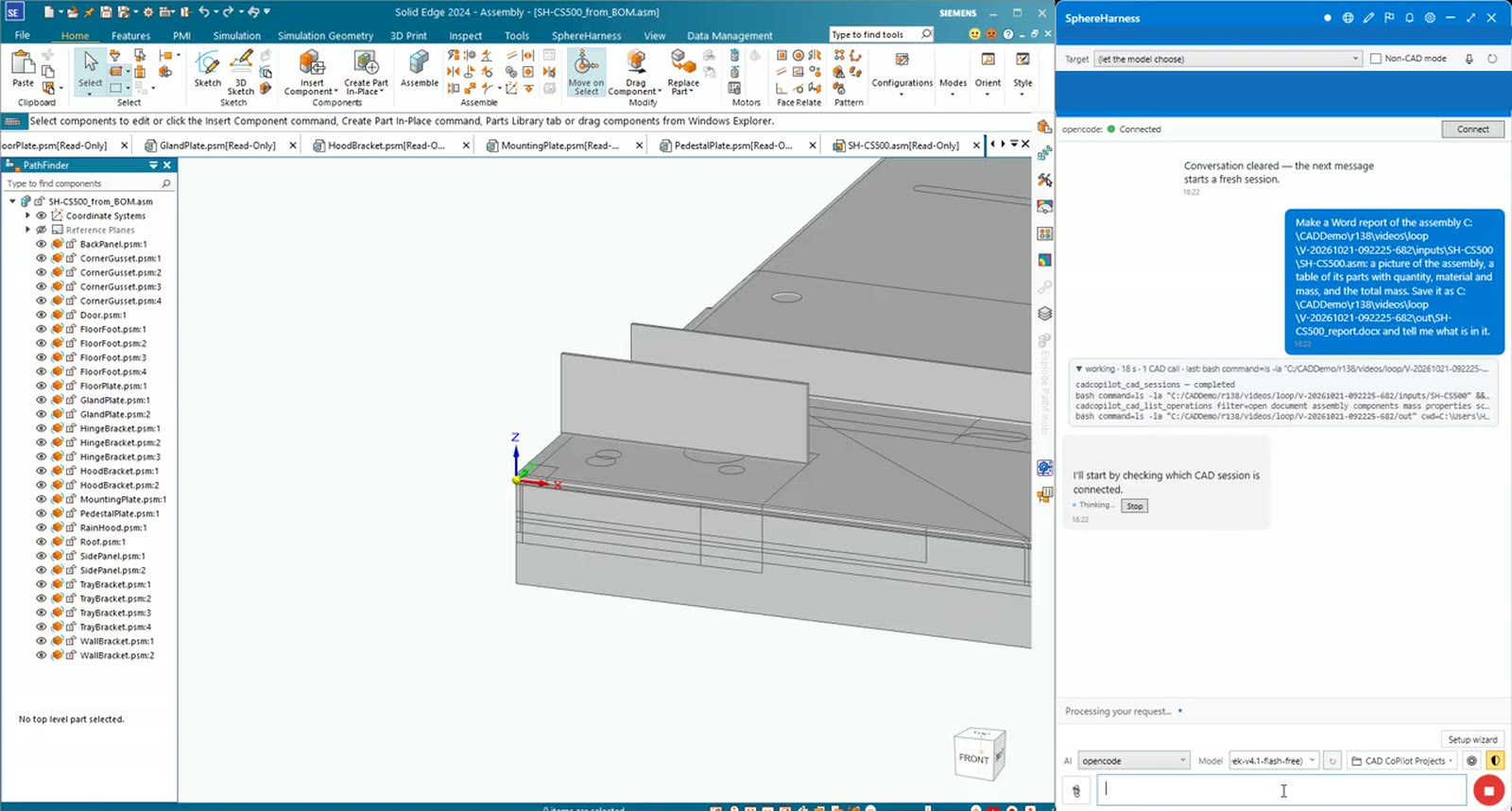
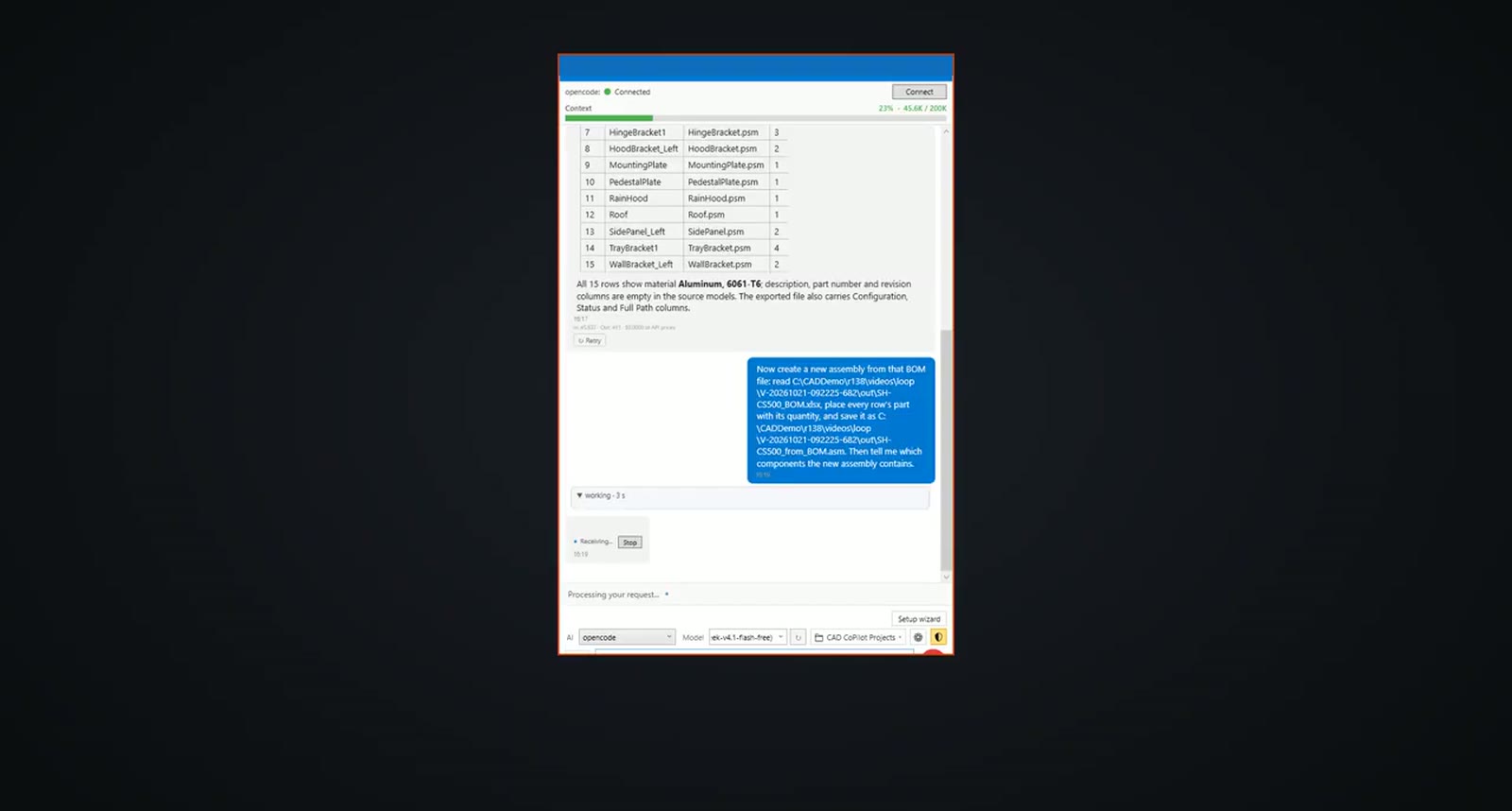
The reverse request built a new assembly from that Excel file. SphereHarness read every row and placed each part with its quantity: 30 components, none skipped, no errors. The file carries no positions, so the parts sit at the origin.
Word report
The last request asked for a picture, a parts table with quantity, material and mass, and the total. The agent read every component, took a picture and wrote the document in under 4 minutes. The total mass is 13.35 kg. The report holds the assembly view, the bill of materials and the total mass.
From Teams
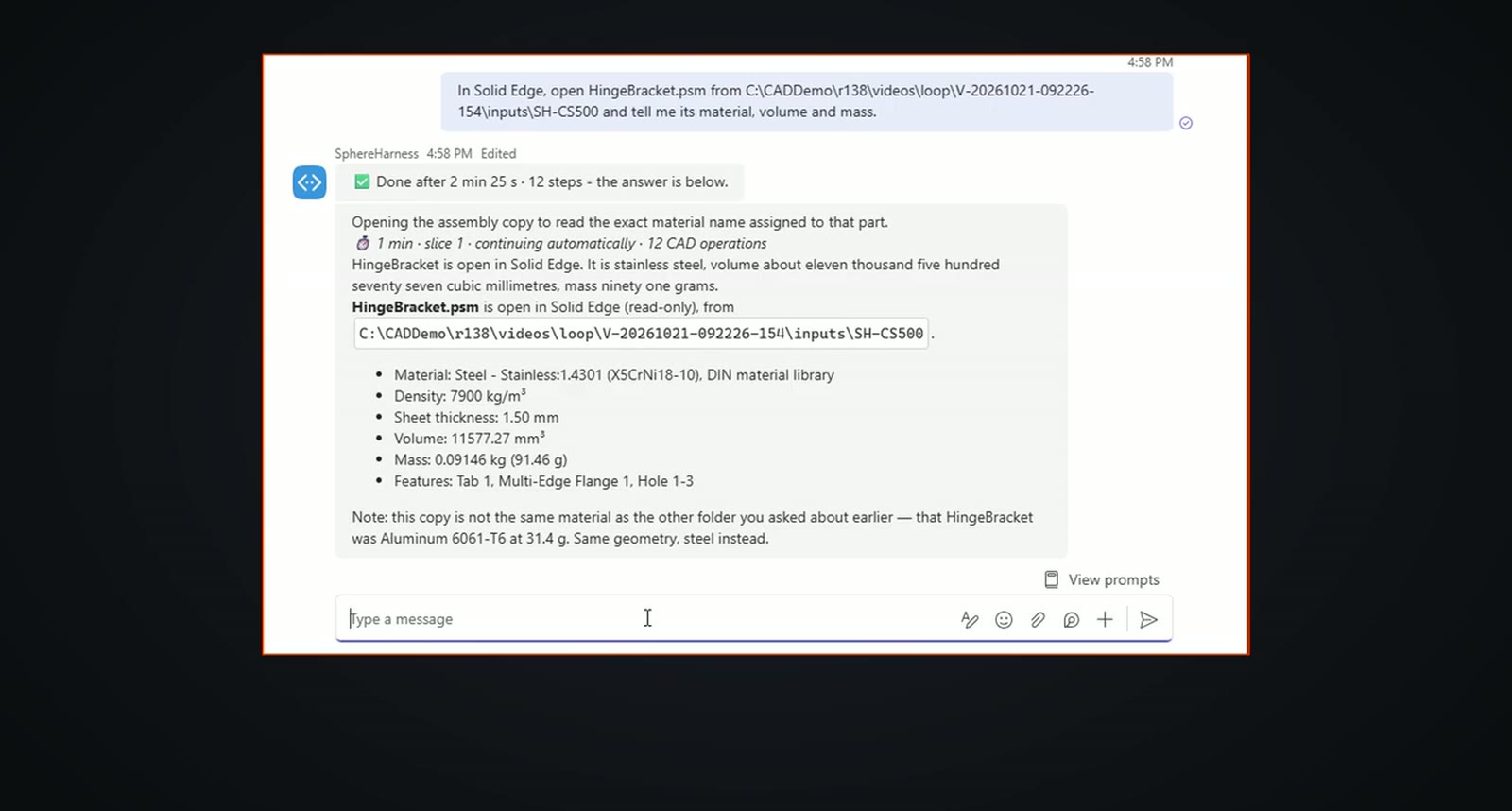
The same kind of request sent from the SphereHarness chat in Microsoft Teams ran in Solid Edge on the PC. The request begins "In Solid Edge, open HingeBracket.psm from ..." and asks for material, volume and mass. About 2 minutes later the answer was back in Teams: stainless steel 1.4301, 1.50 mm, 11,577.27 mm3 and 0.09146 kg. The reply also notes that this copy is not the same material as the hinge bracket in the earlier folder, which was aluminium 6061-T6 at 31.4 g, with the same geometry.
Try it yourself
The Solid Edge page is at /solid-edge, and the first-run steps are in /help/getting-started.