

AI assistant for CAD · runs on your PC
Your prompts and your CAD work stay between your PC and your AI.
Type the job in plain English. SphereHarness runs real operations in Inventor, NX, Solid Edge and AutoCAD and reads the result back. The desktop agent talks straight to the AI you choose, your own API key or a coding agent on your PC, and to the CAD add-ins on the same PC. Our server handles your account, licence and updates.
Applies to the desktop agent and CAD add-ins version 1.3.0 and later.
- Real operationsRuns the CAD system's own features, not a drawing of them.
- Read backMeasures what was built and tells you the numbers.
- Your AIYour own API key or a coding agent already on your PC.
Privacy by design
No SphereHarness server between you and your AI
The work happens on your PC. The AI is the one you pay for. Our server knows who you are and whether your licence is valid. It does not see what you ask the AI or what it answers — unless you send a request from Microsoft Teams or your own WhatsApp number, which it relays to your PC and does not store.
- Your choice Your AI provider Its API with your own key, or a coding agent on your PC
- Between your PC and your AI provider: Prompts, CAD context, answers
- Your PC SphereHarness desktop agent local connection on the same PC CAD add-ins Your CAD system, your files
- Between your PC and your messaging apps: Teams and WhatsApp: relayed through SphereHarness, not stored. Telegram: direct
- Your messaging apps Microsoft Teams The SphereHarness Teams app; WhatsApp on your own Twilio number; your own Telegram bot
- Between your PC and the SphereHarness server: Sign-in, licence check, update check, support requests you send, community posts and packages you publish; Teams and WhatsApp messages you relay, passed on and not stored
- SphereHarness server Account, licence, downloads and updates, support, community No prompts typed on your PC, no answers, no CAD operations. Teams and WhatsApp messages relayed in memory, never stored
-
Your AI, your agreement
Prompts, answers and the CAD context the AI needs go to the provider you chose, under your own agreement with it. Your key is stored encrypted on your PC.
-
CAD work stays on the PC
The desktop agent reaches each CAD add-in over a local connection on the same PC. Chat history and usage counts are files in your Windows profile.
-
What our server does get
Your sign-in, a licence check with a machine id and the computer name, update checks, and the support requests you choose to send. Teams and WhatsApp messages you relay pass through in memory and are never stored.
Results
Real results from our own test runs
Every model, picture and number below comes from a SphereHarness test run in a real CAD system: the files the CAD exported, frames from the recordings, and the values SphereHarness measured and read back.
Sheet metal
Nesting the whole order, read back from the cut files
The SH-CS500 conveyor control station: 15 sheet-metal parts, 30 pieces per station, ten stations ordered. SphereHarness exports every flat pattern from the CAD, nests each material on its own stock sheet and writes one cut file per sheet layout.
- 14 → 11
- sheets for the whole order of 300 parts (Inventor 2026)
- 88.3 %
- utilisation on S235JR 2 mm, 8 → 7 sheets


Batch processing
One job across every part and every file
Give it a folder, a parts list or a whole order and it works through all of it: builds or changes each part, exports each file and checks each result. Record a change once as a macro and it replays over a whole folder with one approval, and a macro run calls no AI model at all.
-
You typestart recording a macro
It watches every CAD call while you make the change on one part, then drops the failures and the read-only lookups.
-
You typestop recording and save it as "Set project property"
You get a macro script. The values it saw repeated are offered as parameters: a folder, a file pattern, a number.
-
You typerun it over C:\Projects\Frame
One approval card, then it works through every file in the folder. No AI model is called, so the run costs no tokens.
STEP to parametric
A dead STEP file back to an editable feature tree
Suppliers often send a solid with no history. SphereHarness recognises the shapes, rebuilds them as the CAD's own features in a new part and compares the result with the imported solid.
- 1 → 17
- dumb body to 16 extrusions and 1 round, editable (Solid Edge 2024)
- 264 × 60 × 122
- mm bounding box, identical before and after
- 2 × 10⁻¹⁰ mm³
- volume difference between rebuilt and imported part


Photo, sketch or model to part
From a photo, a sketch or a reference model to a parametric part
Give it a photograph, a sketch on the drawing board or a model to design around. SphereHarness works out the dimensions, builds a parametric part and exports it. The models below are the STL files the CADs wrote.
- 399,343 mm³
- NX vase volume measured from its exported STL
- 66 × 39 mm
- case base and lid sized from the reference board in the CAD

Macros
When there is no command for it, it writes a macro
SphereHarness writes a macro on the fly, runs it in the CAD session and saves it to your library, where it runs again on another part with no new code. It runs the macros you already have, too.
- 22
- work features hidden on the bike by one macro, and the size table written to Excel (Inventor 2026)
- 0 lines
- of new code to run it again on the Kids size from the library
- 24
- macros in the Solid Edge library after the session, ready to run again


Journals
NX Open journals, written and run in the session
For Siemens NX, SphereHarness writes an NX Open journal, runs it in the live session and reads NX's own report back.
- 38
- solid bodies placed in the MODEL reference set by one Python journal
- all
- datum systems, planes, axes and sketches blanked by the same journal
- NX 2306
- counts reported in NX's own information window


Variations
One master, a whole size family, every value read back
A variation template keeps only the driving values. SphereHarness generates every size as its own file, reopens each one and reads its parameters back from the model.
- 4 sizes
- Kids, Youth, Adult and XL, each saved as its own Inventor part
- 508 → 735 mm
- wheel diameter, every driven value read back
- 22.6 → 55.5 kg
- mass measured on each saved size


On our YouTube channel
-
SphereHarness for Solid Edge - a bicycle in every size with variations
-
SphereHarness for Solid Edge - a bicycle in every size with variations
-
SphereHarness for Siemens NX - a bicycle in every size with variations and Teamcenter
-
SphereHarness for Autodesk Inventor - a bicycle in every size with variations


Troubleshooting
Record what the CAD did, then find out why
When a job goes wrong, ask SphereHarness to record the screen, one CAD window or an area while you run it again: the video shows step by step what the CAD did. It reads its own logs and the Windows event log, collects them for support without keys or sign-ins, and raises the support request for you.
- 0 dropped
- frames recording a 1920 × 1080 window at 30 fps for 30 s, 17 % of one CPU core
- 7.2 s
- still playable from a recording whose process was killed at 7.5 s
- 0
- add-ons to install: Windows' own capture and video encoders
-
You typerecord the Solid Edge window while I run the flat export again
It records that window to an MP4 in Videos\SphereHarness and names the file. The microphone and the camera join only if you ticked them in Settings.
-
You typecheck recent errors
It reads its own logs and the Windows event log entries that name SphereHarness. Read-only: it changes nothing.
-
You typeraise a support request: the flat export fails on our 3 mm panels
You get a reference number. The log zip never holds keys or sign-ins; the recording can go with it.
Downloading models
Fetch a maker's model and put it to work
SphereHarness has its own small browser. Ask for a part from a maker's website and it downloads the file to the folder you name, unpacks it, and opens it or places it in your assembly. It never types a password: when a site wants a sign-in, it stops and you sign in yourself.
- SHA-256
- every download reported with its full path, size and checksum
- never run
- downloaded files are treated as data, never executed
- 1 approval
- the first time it opens each new website
-
You typedownload a 6204 bearing STEP from the maker's site into C:\Projects\Pump
It opens the site in its own browser, asks you once to approve the site, and saves the file there with its size and SHA-256.
-
You typeinsert it into the open assembly
It places the downloaded part as a component of the assembly open in your CAD system.
-
You typethe site asks me to log in
It stops and asks. You sign in yourself in the SphereHarness browser window, and the download carries on there.
Watch it run
See SphereHarness at work
Real sessions in real CAD systems, from the SphereHarness YouTube channel.
-
Siemens NX + Teamcenter + AI: find, change material, reports, BOM export | SphereHarness
-
Autodesk Inventor + AI: Vault search, folder materials, BOM export, Word report | SphereHarness
-
SphereHarness - AI that works inside your CAD software (2-minute introduction)


Videos play from YouTube’s privacy-enhanced player (youtube-nocookie.com) only after you choose one; the preview pictures come from YouTube’s image server. All videos on YouTube
Capabilities
Real operations in your CAD system
From plain English, with the results measured and read back.
-
Modeling from a sentence
Parts, sheet metal and surfaces from plain English, read back from the CAD - and feature trees rebuilt in another CAD or on a dumb solid.
-
Assemblies and drawings
Components, mates the solver has checked, BOMs, views, verified dimensions, GD&T, balloons and BOM tables.
-
Design variations and design studies
A grid of named sizes generated from one master, and design studies that drive dimensions towards a goal.
-
Simulation
Stress, frequency, buckling and thermal studies by chat, with every fixture and load read back before you trust a number.
-
PDM and PLM
Check in and out, lifecycle, revisions and assembly clones from chat, through the connection your CAD already has.
-
Automation
Run existing macros, rules, journals and .NET assemblies by name; record a job once and replay it with no AI model involved.
-
Skills, standards and design rules
House rules as skills, and a shipped design-rule corpus that names the rule and the standard behind every answer.
-
The desktop agent
One assistant for every CAD you have open: launches the CAD, handles its dialogs, opens support requests with your logs.
-
Your AI, your data
Your own AI key or coding agent, with no SphereHarness server in between; macros, skills and indexed documents stay on your PC.
Setup
Up and running in minutes
-
Install the add-in
Install the SphereHarness add-in for Inventor, NX, Solid Edge and AutoCAD. Every installer includes the desktop agent. Downloads
-
Sign in and choose your AI
Sign in to the desktop agent, then pick your own API key or a coding agent already on your PC, such as Claude Code, Codex or Gemini CLI.
-
Start commanding
Type or paste a description. Watch SphereHarness run the operations step by step.
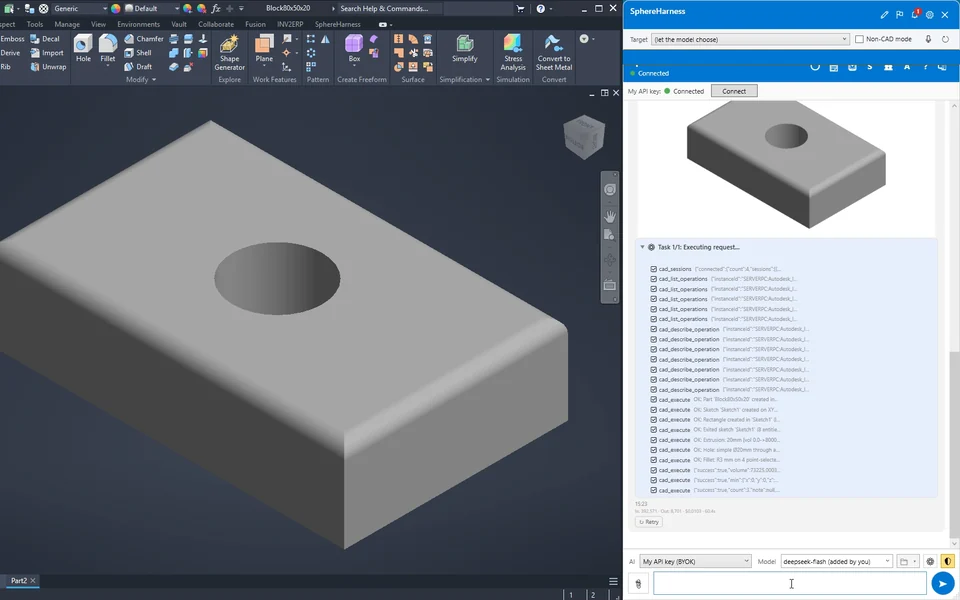
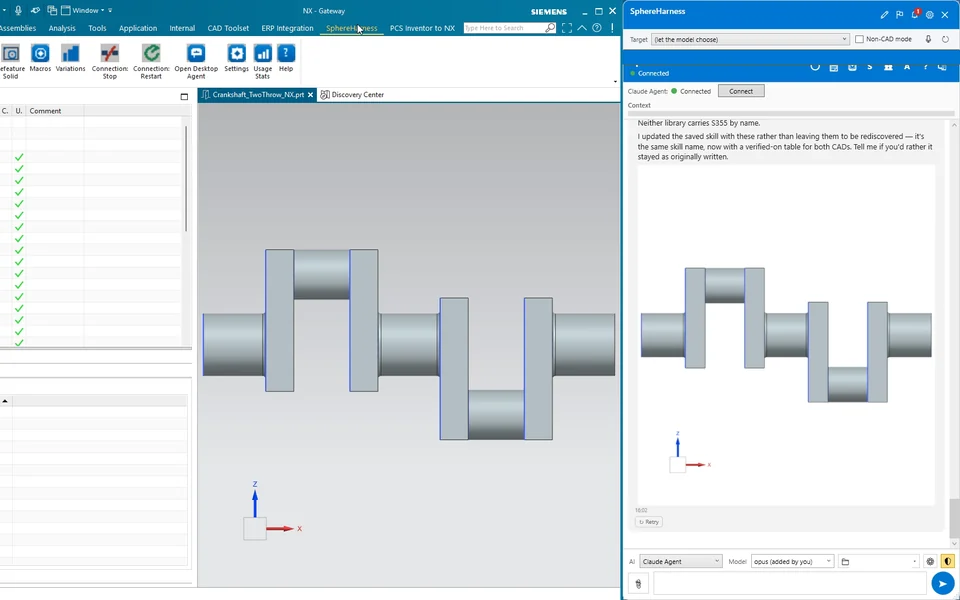
In your CAD
Parts it built, and the chat beside your model
Per CAD system
What each CAD system gets
The same assistant, using each CAD system's own features.
| CAD system | What it gets | Help |
|---|---|---|
| Inventor | Parts, sheet metal, surfaces, assemblies and drawings; Inventor Nastran; Autodesk Vault; iLogic rules in the Automation Hub. |
Learn more: Inventor |
| NX | Parts, sheet metal, surfaces, assemblies and drafting with layers; Simcenter linear static and modal; Teamcenter managed mode and assembly clones; journals played in your open session. |
Learn more: NX |
| Solid Edge | Parts, sheet metal, surfaces, assemblies and drawings; Solid Edge Simulation; macros in the Automation Hub. |
Learn more: Solid Edge |
| AutoCAD | 2D drafting: blocks, xrefs, layers, drafting symbols, layouts and plotting; .NET assemblies in the Automation Hub. |
Learn more: AutoCAD |
Try it on your own parts
Start a trial with your own AI key or coding agent, or talk to us about seats for your team.