

The web portal
Everything SphereHarness does outside your CAD window — your chat history and knowledge base, your own AI key, your company's licence and channels, and the platform administration behind them.
The CAD add-in is where you model. The web portal is where you look things up and change settings: what the assistant remembers, which documents it can cite, whose AI key pays for a chat turn, how many seats your company has, and which external systems chat is allowed to reach. It runs in a normal browser and needs no installation.
Four doors, four audiences
There is not one portal but four, each with its own sign-in page. Which one you use depends on what you are.
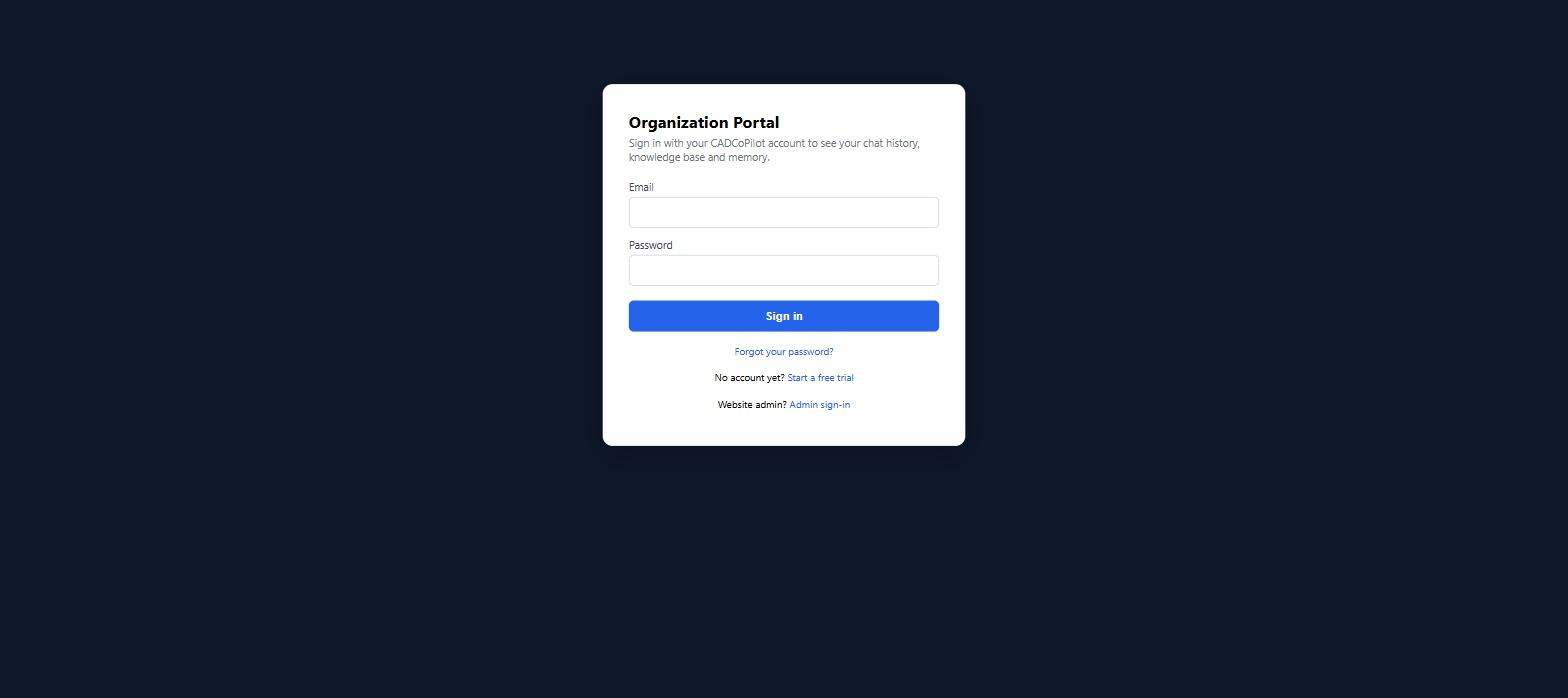
End user Organization portal — /org
Everyone with a SphereHarness account that belongs to a company. Sign in at /org/login. You get your chat history, the shared knowledge base, the facts the assistant has remembered about you, and your personal AI key. Guide: Organization Portal.
Org admin The same portal, three extra pages
If your membership role is org_admin, the same sign-in also shows Messaging Channels, Connections and RAG Provider in the sidebar. There is no separate admin login for organization admins — the extra pages simply appear.
Reseller Reseller portal — /reseller
Partners who sell and manage customer companies. Sign in at /reseller/login. You see only your own customers, raise licence orders for approval, answer your customers’ support requests, and run the desk for basic-licence customers. Guide: Reseller Portal.
Website admin Admin portal — /admin
The platform operator. Sign in at /admin/login. Licences, pricing, AI provider configuration, token cost rates, backups, every organization and every user. Guide: Website Admin Portal. A smaller Team Portal lives in the same URL space for team-scoped deployments.
Roles, honestly
Four role names decide what you can see. They are independent of each other — being one does not make you another.
- Member — an
OrgMembershiprow with rolemember. Sees the four personal pages in the org portal. Chat history is pinned to their own conversations; the filter is re-applied on the server, so it cannot be widened from the browser. - Organization admin — an
OrgMembershiprow with roleorg_admin. Adds Users (invite colleagues), Messaging Channels, Connections and RAG Provider, and can see every member's chat history and delete knowledge documents. A website admin, a reseller, or an existing organization admin (Users page) can grant this role. - Reseller admin — an account linked to a reseller, carrying a
reseller_id. Sees the reseller portal and nothing else. - Website admin — a row in the platform's
WebsiteAdminstable with Active status. Full access to/admin. Granting it requires an existing user account: a website admin enters the person's email on Website Admins, and access can be revoked and restored later without deleting the row.
Signing in and out
Each portal keeps its own browser session, so signing in to one does not sign you in to another. Points worth knowing:
- The org portal requires a membership. A registered account that belongs to no company cannot sign in at
/org/login— ask your administrator to add you to the organization first. - A deactivated account is refused even with the correct password.
- Same credentials as the add-in. There is no separate portal password.
- Sign out from the link in the top right. If you hold several sessions at once, the admin session takes precedence when the portals overlap — a website admin browsing
/orgsees an “← Admin Portal” link instead of a sign-out link.

Where to find the help you need
Organization Portal
Seats, downloads, support requests and the org admin's connections. The pages of the server-hosted AI are not offered.
Team Portal
Team dashboard and member list for team-scoped deployments.
Reseller Portal
Your customers, licence orders, user requests, the support queue and the basic-licence desk.
Website Admin Portal
Every administration page: licences, AI providers, cost rates, tenants, the support pool, outgoing mail, backup and analytics.
Common mistakes
- Looking for admin pages in the wrong portal. Organization admins manage channels and connections inside
/org; there is no/adminaccess for them, and there does not need to be. - Expecting a portal change to reach a running CAD add-in instantly. Most settings apply on the next chat turn, but a new Telegram bot token is only picked up when the messaging service next restarts.
- Assuming a blank secret field means “no secret”. Throughout the portal, a blank password box on a record that already has a secret means keep the stored one. To remove a secret, delete or disable the record instead.
- Confusing the key vault with the chat configuration. Keys stored on the admin portal's Provider Credentials page are not what chat uses. See Website Admin Portal.
See also
- Organization Admin Guide — the short version, aimed at a new company admin.
- Sign In & Out — signing in from the CAD add-in.
- Getting Started — installing the add-in.