

Tenant Mode: Organisation Server Setup
Decide settings and publish macros, automations and variation templates once, on your company's own SphereHarness Organisation Server, and every PC picks them up by itself — at start, on Sync now, and every few minutes. Nothing passes through SphereHarness.
%APPDATA%\CADCoPilot\tenant\; the CAD add-ins read that copy and never the server, so a slow network is never felt while people work. Your sign-in to SphereHarness, every key and password, keyboard shortcuts and window positions never leave the PC.How do I set up the organisation (tenant) server? — the commands
shell tool never runs elevated — so the assistant gives you the commands below, filled in with what you told it (the port, your organisation's short name), and you run them on the server.Prerequisites: a Windows server or always-on Windows PC (64-bit, Windows Server 2016 or later, or Windows 10 / 11); a local administrator account on it; TCP port 8644 (or the port you choose) reachable from the users' PCs — the script opens it in Windows Firewall, open it on any network firewall in between; the organisation server package (the folder or zip with CADCoPilot.Rag.Server.exe) and install-organisation-server.ps1 from your SphereHarness download — no .NET runtime is needed on the server.
On the server: Start → type PowerShell → right-click → Run as administrator, then paste:
# 1. One folder with the package and the script (replace the two <...> paths with where your download is)
New-Item -ItemType Directory -Force C:\SphereHarness-Setup | Out-Null
Expand-Archive -Path '<organisation server package>.zip' -DestinationPath C:\SphereHarness-Setup\pub -Force
Copy-Item '<folder of the download>\install-organisation-server.ps1' C:\SphereHarness-Setup\
Set-Location C:\SphereHarness-Setup

# 2. Check first (changes nothing), then install. <short name> = your organisation's name, e.g. acme
powershell -ExecutionPolicy Bypass -File .\install-organisation-server.ps1 -SourceDir .\pub -TenantId <short name> -Port 8644 -GenerateAdminPassword -DryRun
powershell -ExecutionPolicy Bypass -File .\install-organisation-server.ps1 -SourceDir .\pub -TenantId <short name> -Port 8644 -GenerateAdminPassword

# 3. Verify
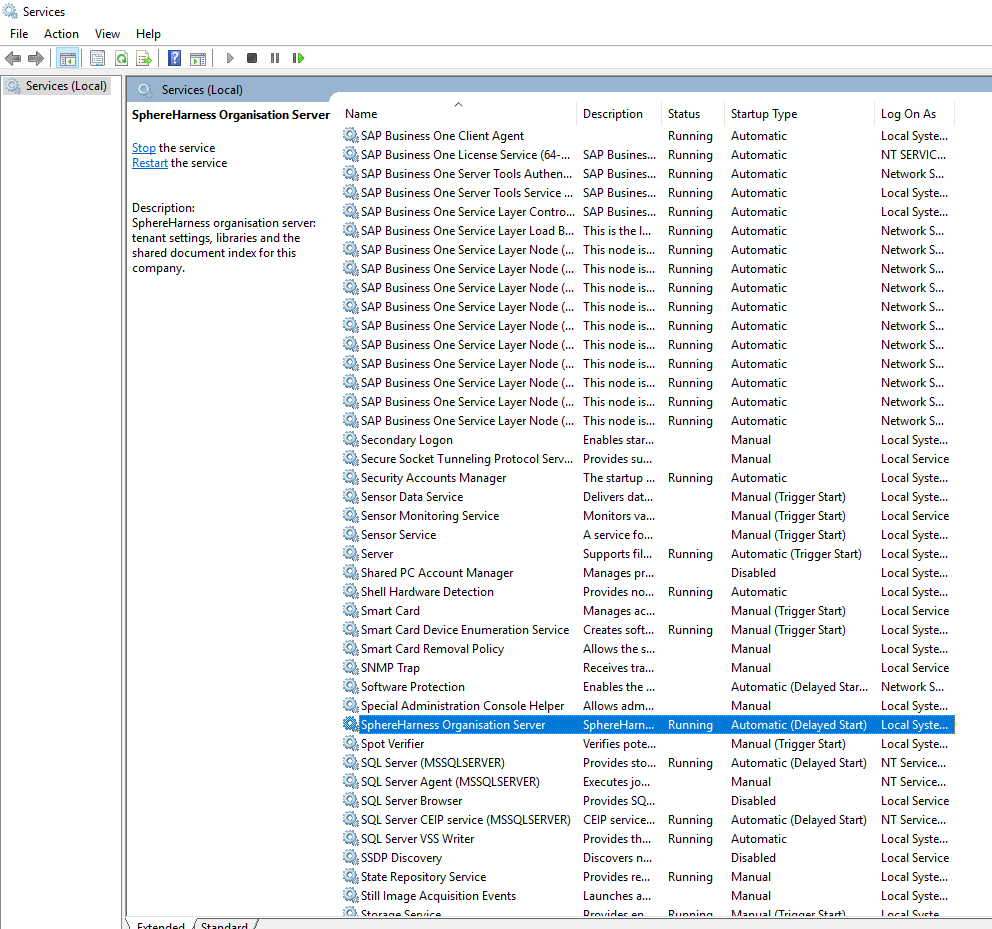
Get-Service SphereHarnessDocIndex
(Invoke-WebRequest http://127.0.0.1:8644/v1/health -UseBasicParsing).Content
Get-WinEvent -LogName Application -MaxEvents 300 | Where-Object Message -match 'Organisation server|Tenant Admin licence' | Select-Object -First 3 TimeCreated, Message
What you should see: the install ends with "Organisation server ready: service 'SphereHarness Organisation Server' (SphereHarnessDocIndex), TCP 8644 open." and a line URL for the PCs: http://<server address>:8644; Get-Service shows Running; the health check prints {"status":"ok"}; the event log shows the start-up line "Organisation server <version>. Tenant store: ..." and the "Tenant Admin licence: ..." line. The generated key is in C:\ProgramData\SphereHarness\OrganisationServer\organisation-server.key and the tenant administrator password in organisation-server-admin-password.txt beside it (Administrators only, never printed) — move the password to your password manager and delete that file. A different port: change -Port and the port in the health check. From a user's PC, http://<server address>:8644/v1/health in a browser must answer {"status":"ok"} too.
Company channels (optional, 3c). If the organisation will run a company WhatsApp number or Telegram bot and the server is on plain http, add the secrets to the install line — each one is asked for hidden, never printed, and stored in a protected file on the server (re-run the script to change one): -TwilioAuthToken, -TelegramBotToken, -SphereHarnessRelayToken (the token the server connects to the company number’s SphereHarness relay with; the administrator’s channel setup dialog shows it once). Over https the administrator can instead do it all in the channel setup dialog on their PC. -DryRun shows these steps without asking. The server needs no public address and no tunnel for the channels.
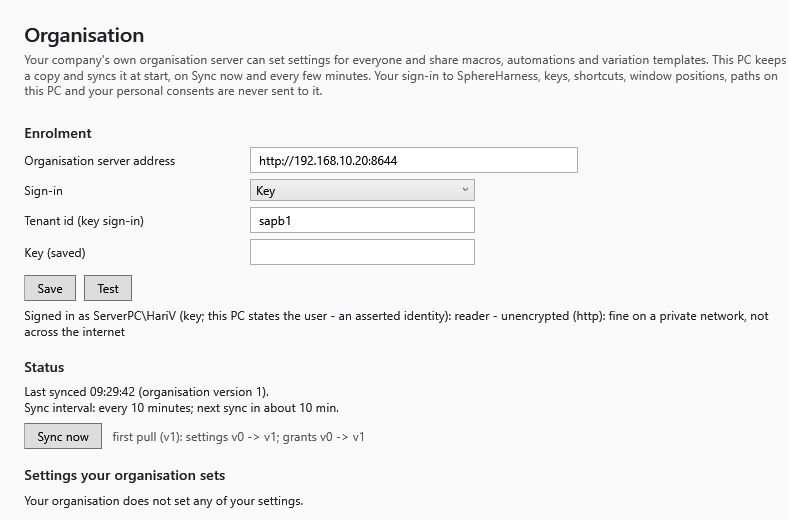
Then on each PC (the client side): desktop agent → Settings → Organisation → the server address (the URL for the PCs line), the sign-in kind (key for this install) and the key → Test. Many PCs at once: the machine policy or the MSI properties. Once, on the tenant administrator's PC: Sign in as administrator with the password from the file, then Activate with your SphereHarness sign-in.
The order of things
- IT installs the organisation server on a Windows server and opens TCP port 8644.
- IT points the PCs at it by Group Policy, MSI properties, or each person types the address.
- The tenant administrator activates the server once with their SphereHarness sign-in and their Tenant Admin licence — until then the server reads normally but refuses every save and publish.
- The tenant administrator chooses the managed settings, who may edit them locally and the sync interval in Settings → Organisation, and saves.
- Everybody else does nothing: their PC has the new values within the interval, or at once after Sync now.
1. Prerequisites
| What | Why |
|---|---|
| A Windows server or always-on Windows PC (64-bit; Windows Server 2016 or later, Windows 10 / 11) | The organisation server runs as a Windows service |
| Local administrator rights and an elevated PowerShell | To create the service, the data folder and the firewall rule |
| TCP port 8644 reachable from the users' PCs | The service's port; the script opens it in Windows Firewall — open it on any network firewall in between too |
The organisation server package and install-organisation-server.ps1 | The package is self-contained: no .NET runtime is needed on the server |
| Optional: a TLS certificate for the name people will type | For https://, recommended outside a trusted network |
2. Install the organisation server
Copy the package folder and the script to the server, open PowerShell as Administrator in that folder and run:
powershell -ExecutionPolicy Bypass -File .\install-organisation-server.ps1 -SourceDir .\pub -TenantId <your tenant id> -GenerateAdminPassword-SetAdminPassword instead of -GenerateAdminPassword asks you to type the password; -ImportPack <file> also loads a .sphereharness-pack as the first libraries; -Port, -AuthMode, -AdminGroups and -DryRun are described in the script's header. The script:
- copies the program to
C:\Program Files\SphereHarness\OrganisationServer\; - creates the data folder
C:\ProgramData\SphereHarness\OrganisationServer\, readable by Administrators and the service only, with the databasetenant.db(SQLite — no database server to install); - writes
appsettings.Production.jsonbeside the exe: listen onhttp://0.0.0.0:8644, key sign-in, the generated key, the tenant id, the absolute database paths, andRag:Embeddings:Backend=hash(no AI model file is needed unless the server is also your document index); - generates the key and writes it to
organisation-server.keyin the data folder — it is never shown on screen; that file is the key file the PCs get (TENANT_KEY_FILE); - creates the Windows service SphereHarness Organisation Server (service name
SphereHarnessDocIndex, startup type Automatic (Delayed Start), restarts on failure) — delayed, because on a busy server a plain Automatic start can time out during boot and leave the service stopped; - adds the inbound firewall rule “SphereHarness Organisation Server”, TCP 8644;
- sets the tenant administrator password — generated into
organisation-server-admin-password.txtin the data folder, or typed — and keeps only a salted hash of it in the server; - starts the service and checks
/v1/healthon127.0.0.1and on the server's network address,/v1/whoamiand/v1/tenant/manifestwith the key, and/v1/tenant/whoamias the administrator. It refuses to start when another program already listens on the port.
Running the script again with a new package is the upgrade: the configuration and the key are kept.

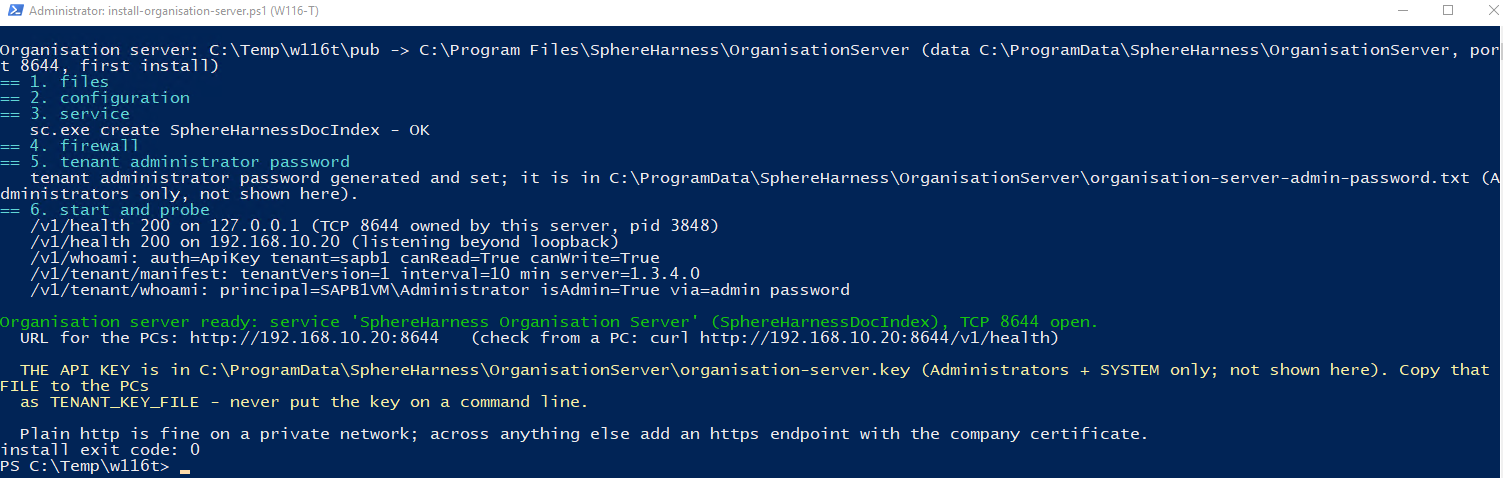
/v1/health answers on the server and on its network address, and the key and the administrator password are checked. Nothing secret is ever printed.Check from a user's PC: http://<server>:8644/v1/health in a browser answers {"status":"ok"} without signing in — use it for monitoring.
Where things are on the server
| What | Where |
|---|---|
| Program | C:\Program Files\SphereHarness\OrganisationServer\ |
| Settings (port, sign-in, key, tenant id) | appsettings.Production.json beside the exe — readable by Administrators and the service; an upgrade never overwrites it |
| Database (settings, grants, libraries, audit) | C:\ProgramData\SphereHarness\OrganisationServer\tenant.db — back this file up |
| The generated key | organisation-server.key in the data folder and Rag:ApiKey in appsettings.Production.json — never printed |
| The tenant administrator password | Only a salted hash, in the server's own store (and, with -GenerateAdminPassword, in organisation-server-admin-password.txt until you move it to your password manager). Change it: run the exe with --set-admin-password in an elevated console from the program folder |
| Request log | tenant-requests.log in the data folder: one line per request (time, route, status, who) — never a key or a value |
| Logs | Event Viewer → Windows Logs → Application |
Key, Windows login or Microsoft Entra ID
The script installs key sign-in, which suits a small team or a trial. For a company domain use Windows login (nobody types anything, access by Active Directory group); for a server in your cloud use Microsoft Entra ID. These are the same three modes, groups, certificate and Entra app registration as the document index. Add Rag:Tenant:AdminGroups to make a group the tenant administrators, instead of or as well as the admin password.
Key mode and per-user grants: the key identifies a trusted PC, not a person; the PC tells the server which Windows user is asking, and the Test line calls that identity asserted. Use Windows login or Entra where per-user grants matter.
http or https: plain http:// is meant for this PC or a private network address (a Tailscale 100.x address included), and the Test line warns that it is unencrypted. In key mode the agent never sends the key over plain http to an internet address — the request is refused before it connects. For anything beyond the LAN see 3d.
3. Point every PC at the server
Machine policy outranks the person's own setting. HKLM\Software\Policies\SphereHarness\Tenant, REG_SZ values:
| Value | Meaning |
|---|---|
Url | The organisation server's address, e.g. https://orgserver.corp.example:8644 |
Auth | key, windows or entra |
Tenant | Key mode only |
KeyFile | Key mode only: the path of a copy of organisation-server.key (never the key itself); the agent reads it once into the person's DPAPI store |
SyncIntervalMinutes | Optional: outranks the administrator's interval on that PC |
EntraTenantId, EntraClientId, EntraScope | Entra ID only |
Locked | Optional: setting names nobody may change locally, whatever the grants say |
Push it with Group Policy Preferences (Computer Configuration → Preferences → Windows Settings → Registry), or at install time with the MSI properties TENANT_SERVER_URL, TENANT_SIGNIN_MODE, TENANT_ID, TENANT_KEY_FILE, TENANT_SYNC_INTERVAL_MIN and TENANT_ENTRA_TENANT / _CLIENT / _SCOPE:
msiexec /i CADCoPilot.Inventor.Setup.msi ACCEPTEULA=1 TENANT_SERVER_URL=https://orgserver.corp.example:8644 TENANT_SIGNIN_MODE=windows /qnA silent install needs ACCEPTEULA=1; every property, the setup.exe form and the exit codes are in Silent & unattended install.
The MSI remembers the properties: an upgrade or repair without them keeps the PC enrolled. The key never appears on a command line or in the registry — only the path of the key file does.
Without a policy, each person opens the desktop agent → Settings → Organisation, types the address, chooses the sign-in kind (and the key in key mode) and clicks Test.
3b. Activate the server with your SphereHarness sign-in
The organisation server's tenant functions are enabled by a Tenant Admin licence — a SphereHarness licence held by the person who administers the server, not by the server. Until a tenant administrator activates it, the server reads normally (PCs enrol, sync and keep everything) but refuses every save, grant, publish, import and removal by name:
A server upgraded from an earlier release behaves the same: what it already published stays on every PC.
Who can activate: a tenant administrator whose SphereHarness account holds a Tenant Admin licence and, beside it, a CAD add-in licence or a desktop-agent licence (The Tenant Admin licence). Settings → Account says “Tenant Admin licence: held (your organisation's server may be activated and renewed by you)” or “not held”. Members need nothing new.
- On the tenant administrator's PC, sign in to SphereHarness in the desktop agent, as usual.
- Settings → Organisation: the PC is enrolled (above) and, for the first activation, you are signed in as a tenant administrator (a member of the administrator groups, or the admin password and Sign in as administrator).
- In the block Organisation server licence, click Activate with your SphereHarness sign-in.
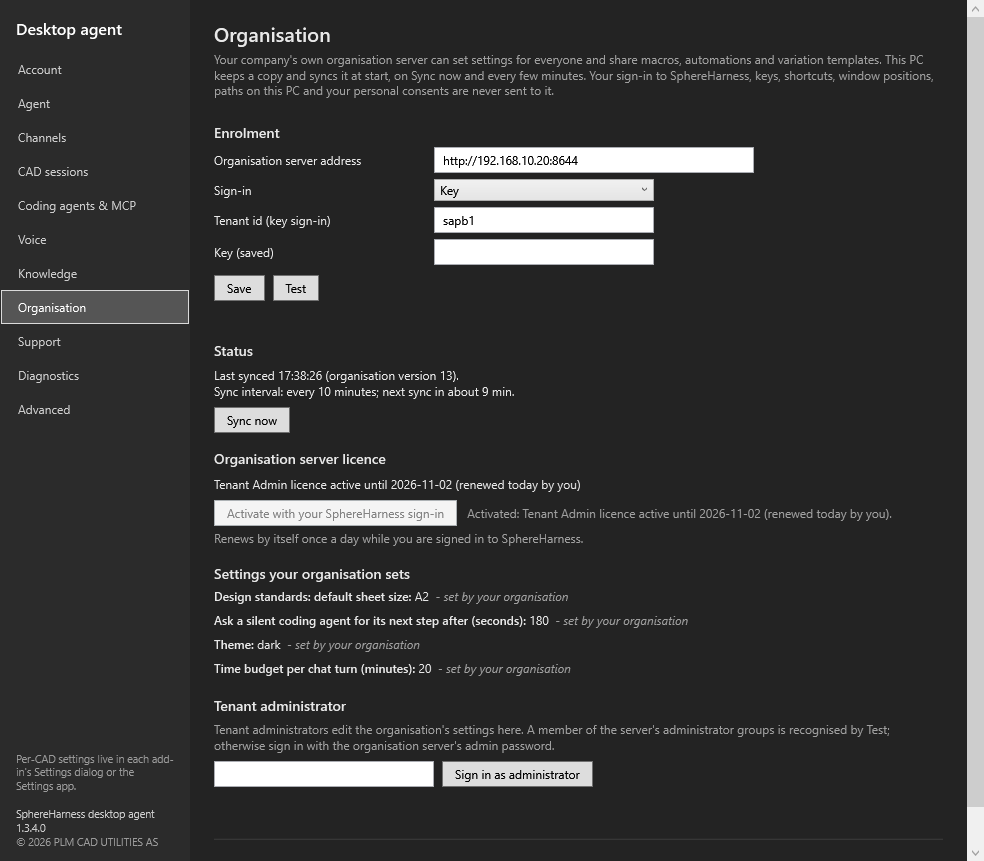
- The line now says “Tenant Admin licence active until 2026-11-02 (renewed today by you)”, the button greys out (its tooltip: “the licence is active for your organisation and renews by itself while you are signed in”) and saves and publishes work.
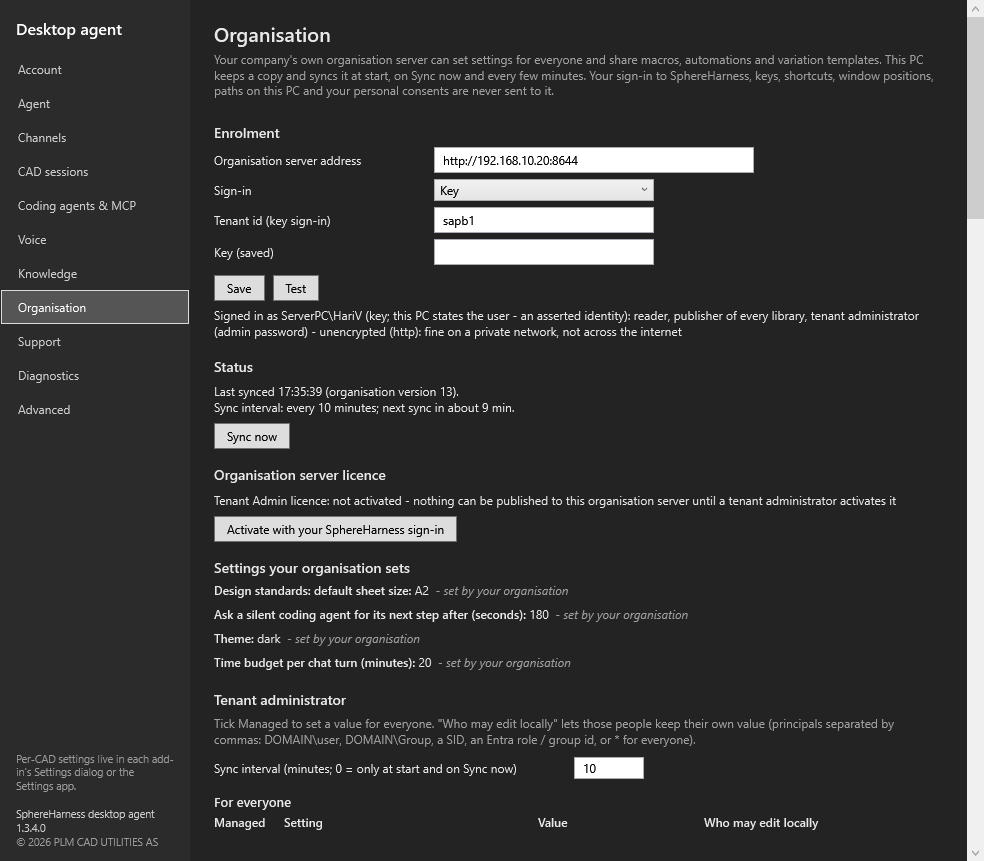
When the button is greyed, its tooltip names what is missing: “sign in to SphereHarness first”, “your SphereHarness account holds no Tenant Admin licence”, or “a Tenant Admin licence needs a CAD add-in or desktop-agent licence beside it”. If it says “the SphereHarness server does not offer Tenant Admin licences yet”, your SphereHarness site has not switched the licence on; the server stays not activated.
It renews by itself
The server keeps a 30-day licence lease. The block says “Renews by itself once a day while you are signed in to SphereHarness.”: the administrator's desktop agent renews it once a day after a sync while signed in to SphereHarness (at once when it is expiring), and Activate with your SphereHarness sign-in renews it on demand. Any licensed tenant administrator of the same organisation can renew it. The first activation ties the server to your SphereHarness organisation; an activation from another organisation is refused and names the organisation it is activated for.
An open Settings window follows the licence by itself: the line and the button update after an Activate, an automatic renewal or the lease running out, without reopening the page. A refused click names what failed — “Could not activate: ...”, “Could not re-activate: ...” (an automatic attempt: “Could not renew: ...”). If your administrator sign-in ended while the page was open, the click says “... Your administrator sign-in on the organisation server expired after 30 min of inactivity - sign in again.” with the password box and Sign in again beside the licence block; sign in and click the button again. Once an administrator sign-in has ended (say a Save found it ended), every later administrator click on that page — Re-activate included — says so, until you sign in again. Activate and Re-activate change only the licence block: your administrator sign-in and any unsaved edits in the editor below stay as they are.
| The licence line says | Meaning |
|---|---|
| “Tenant Admin licence active until 2026-11-02 (renewed today by you)” | Saves and publishes work |
| “Tenant Admin licence expiring on 2026-10-28 (5 days left) - sign in to SphereHarness to renew (renewed 2026-10-03 by jane@corp.example)” | Less than 7 days left; a licensed administrator signing in renews it. Under a day it says hours (“23 hours left”); the date is your PC's local day, and the organisation server's own text counts the time left the same way |
| “Tenant Admin licence expired on 2026-11-02 - the organisation is read-only until a tenant administrator activates it (renewed 2026-10-03 by jane@corp.example)” | Read-only — see below |
| “Tenant Admin licence: not activated - nothing can be published to this organisation server until a tenant administrator activates it” | Never activated: read-only |
| “this organisation server does not report a licence (older server)” | The server is from before the Tenant Admin licence; upgrade it |
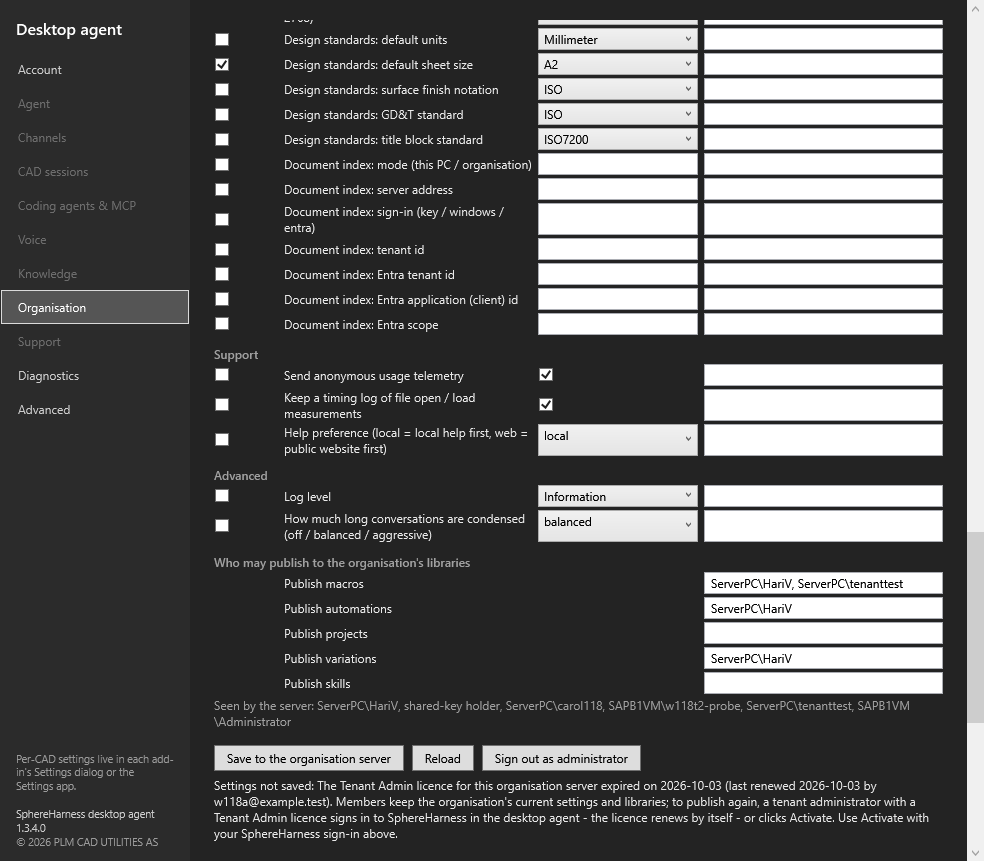
When it expires
Members keep the organisation's current settings and libraries — nothing is taken off a PC, and every PC still syncs. Every save, grant, publish, import or removal is refused with the date:
The document index and company connections on the same service never need this licence. The company channels do: an expired licence stops delivery — the person gets a reply naming the expired licence — and keeps every pairing.
What reaches SphereHarness: only the administrator's desktop agent talks to SphereHarness — one request with the administrator's sign-in and an empty body, answered with a signed statement valid for 10 minutes (who the administrator is, their organisation and seat). The agent hands that statement to the organisation server, which checks it with a public key built into the program. The organisation server contacts SphereHarness only for a company WhatsApp number: it then keeps ONE outbound connection to SphereHarness, over which Twilio’s requests for that number arrive (3c). Nothing about the server — its address, name, settings, libraries or members — is sent there. No licence file is put on the server.
Several tenants on one server (key mode, one tenant id each): each tenant is activated on its own, by a licensed administrator of that tenant.
3c. Company channels — one WhatsApp number and Telegram bot for everybody
The organisation server also carries the channels service: the company's ONE Twilio WhatsApp number and Telegram bot, each person's messages delivered only to their own PC. Details per channel: Channels & Messaging, WhatsApp, Telegram. Teams is not a company channel on this server any more: everybody uses the SphereHarness Teams app.
How it works. WhatsApp: Twilio calls the company number’s permanent SphereHarness relay address, and SphereHarness passes each request, unchanged and without storing it, to this server over ONE connection the server opens out to SphereHarness. Telegram: the server fetches the bot’s messages itself. The server checks every message (Twilio’s X-Twilio-Signature with the company token, which never leaves it), finds the sender’s paired PC, and keeps the message (up to 2 minutes) until that PC collects it. Each PC fetches its own messages over the connection it already has to this server (key, Windows or Entra sign-in) — no inbound port, no firewall rule, no tunnel and no secret on any member PC, and no public address or tunnel on the server either. Answers go back from the server through Twilio / Telegram with the company credentials.
The administrator's one-time setup
Per channel, in the channel setup dialog on the administrator's enrolled PC → “Who is this for?” → Organisation - one bot for everyone, run on our organisation server, signed in as administrator:
- The vendor side: the Twilio account + sandbox or sender (WhatsApp), @BotFather (Telegram).
- The secret, typed in the dialog's password box and sent once over HTTPS to this server, which stores it encrypted (Windows DPAPI, machine) in its data folder. Over plain
httpthe dialog never sends a secret; it shows the script line instead:install-organisation-server.ps1 -TwilioAuthToken | -TelegramBotToken | -SphereHarnessRelayToken(typed hidden, see the commands). - WhatsApp only: the company number’s SphereHarness relay address and the relay token the server connects with (the dialog gets both; the token goes to this server, never into the chat). A registered number gets the address written into Twilio by the server; for the sandbox, paste it into Sandbox settings → When a message comes in (POST). Port 8644 stays on the LAN.
- Save — a licensed write (the Tenant Admin licence, 3b). Every enrolled PC learns the company channels on its next sync.
Members
Nothing to install. Settings → Organisation → Company channels shows per channel the state and a pairing code (6 characters, 15 minutes, 5 tries, one code for both channels): “Send ABC123 to +number on WhatsApp” / “/start ABC123 to @bot in Telegram”. Sending it proves the person's WhatsApp / Telegram identity and binds it to that PC (“Connected: your messages now reach PcName.”). A PC that is not running gets the person a reply naming the PC and when it was last seen. If this server itself is not connected to SphereHarness, a message to the company WhatsApp number gets one fixed sentence from SphereHarness: “Your organisation’s SphereHarness server is not connected right now. Please try again later.”
Options (in appsettings.Production.json, Rag:Tenant:Channels): ApproveRoutes (default off — on = an administrator clicks Approve for every pairing), allowPersonal (default on — members may use their own number / bot instead; one binding per channel per PC).
Licence: changing a company channel and approving / disabling a pairing are licensed writes; delivering messages and pairing need an active (or expiring) licence. Expired = the person gets a reply naming the expired licence; every pairing is kept.
3d. Reaching the organisation server from another office or country (no VPN)
The server listens on port 8644 on your office network. A team elsewhere (another office, another country, people at home) cannot reach that address from the internet. Pick one of three routes. With every route the server stays on your own machine, and nothing passes through SphereHarness.
| A. Router port + HTTPS (recommended) | B. Cloudflare named tunnel | C. Tailscale (mesh VPN) | |
|---|---|---|---|
| You need | A router you can configure, a DNS name (your domain or a dynamic-DNS name), and a certificate (free: Let's Encrypt with win-acme) | A domain added to Cloudflare (its nameservers moved to Cloudflare) | A Tailscale account, and Tailscale on the server AND on every member PC |
| Router port | 443, plus 80 while Let's Encrypt validates by HTTP-01 | None (the tunnel connects outbound only) | None |
| Members' URL | https://org.example.com |
https://org.example.com |
http://orgserver.<tailnet>.ts.net:8644 |
| On member PCs | Nothing | Nothing | Tailscale |
| Company WhatsApp / Telegram (3c) | Work — no public address needed for them | Work — no public address needed for them | Work — WhatsApp arrives over the server's outbound connection to SphereHarness, Telegram is polled |
| Best for | A fixed office line you control | No router access, or you already use Cloudflare | A small team that accepts one app per PC |
The server switch. The server lets members in from the internet only after you allow it. By default, a request
that arrives from the internet gets 404 everywhere except /v1/health. "From the internet"
means it came through a Cloudflare tunnel, or from an address that is not on your network.
- For route A, the install script turns the switch on with
-PublicHostName. - For route B, it turns it on with
-AllowRemoteMembers. - Either way it writes
"RemoteAccess": "members"underRaginappsettings.Production.json. - Members still sign in exactly as they do on the LAN.
- Route C needs no switch, because Tailscale addresses (100.64.0.0/10) count as your network.
Sign-in for a remote team: use Microsoft Entra ID. With Entra ID each person signs in with their own work account, and you remove one person by removing them in Entra. Key mode also works, but everybody shares one key, and changing it means changing it on every PC. Over the internet, key mode has three safeguards:
- The server accepts the key from the internet over HTTPS only.
- The agent refuses to send the key over plain http to an internet address.
- The install script prints a warning that recommends Entra.
Route A — router port forward + HTTPS (recommended)
- Get a DNS name for the office's public IP address. Add an
Arecord, for exampleorg.example.com→ the public IP, at your DNS provider. If the office IP changes, use a dynamic-DNS name instead (many routers have a DDNS setting).install-organisation-server.ps1 -CheckReachabilityprints the public IP as the internet sees the server, plus its addresses and which ports are listening, and changes nothing. - Set up the router. Forward TCP 443 → the server's LAN address, port 443. If the certificate is validated by HTTP-01 (step 4), also forward TCP 80 → port 80.
- If the server is a Hyper-V VM, check its switch. A VM on the Default Switch sits behind its host's NAT, and the router cannot reach it. Do one of these:
- Connect the VM to an External virtual switch: Hyper-V Manager → Virtual Switch Manager → External, or
New-VMSwitch -Name External -NetAdapterName <adapter>. - Forward the port on the host:
netsh interface portproxy add v4tov4 listenport=443 listenaddress=0.0.0.0 connectport=443 connectaddress=<VM IP>. Add port 80 the same way, and add a host firewall rule for both ports. The server then sees the host's address instead of the caller's, so it cannot tell internet callers from LAN ones: prefer the External switch. - Get a Let's Encrypt certificate with win-acme (
wacs.exe, from win-acme.com). Run it on the server, elevated. win-acme puts the certificate inLocalMachine\My. Its scheduled task runs every day and renews the certificate ahead of expiry (55 days before, by default), removing the old one. With HTTP-01, port 80 must reach the server (step 2), and win-acme answers the validation itself:
powershell
   C:\Tools\win-acme\wacs.exe --accepttos --emailaddress it@example.com --source manual --host org.example.com `
     --validation selfhosting --store certificatestore --certificatestore My `
     --installation script --script "C:\ProgramData\SphereHarness\OrganisationServer\certificate-renewed.ps1"
If port 80 cannot reach the server, use DNS-01 instead. win-acme's DNS plugins (Cloudflare, Azure, Route 53, GoDaddy and others) renew by themselves. Manual DNS validation does not renew automatically.
How renewal reaches the server: the install script writes certificate-renewed.ps1 on every service install, and
win-acme runs it after each renewal to restart the service. The server picks its certificate by subject name
(org.example.com). At start-up it uses the matching certificate with the latest expiry. A renewed certificate has a
new thumbprint, and the server still uses it after the restart, with no configuration change.
5. Run the install line. Use it for a new install, or run the same line over an existing install: it keeps the
configuration and adds the https endpoint.
powershell
   $thumb = (Get-ChildItem Cert:\LocalMachine\My | Where-Object Subject -eq 'CN=org.example.com' |
             Sort-Object NotAfter -Descending | Select-Object -First 1).Thumbprint
   powershell -ExecutionPolicy Bypass -File .\install-organisation-server.ps1 -SourceDir .\pub -TenantId <tenant> `
     -AuthMode Entra -PublicHostName org.example.com -CertificateThumbprint $thumb
The script then:
— adds an https endpoint on port 443 (-HttpsPort changes the port);
— opens that port in Windows Firewall;
— turns on the server switch.
Plain http on 8644 stays on for the office LAN. Add -HttpsOnly to keep plain http on the server itself only. To use
a certificate file from your own CA, pass -CertificatePath cert.pfx instead of -CertificateThumbprint. The script
asks for the file's password with hidden input. It never takes the password on the command line.
6. Point members at the https address. Either install with
msiexec /i CADCoPilot.Agent.Setup.msi ACCEPTEULA=1 TENANT_SERVER_URL=https://org.example.com TENANT_SIGNIN_MODE=entra ... /qn, or have each
person enter https://org.example.com in Settings → Organisation and click Test.
7. Test from outside. On a phone with Wi-Fi off (mobile data), or on any PC outside the office, run
curl https://org.example.com/v1/health. It should answer {"status":"ok"}.
— If it times out, check the router forward and the Hyper-V switch.
— If it shows a certificate error, the name and the certificate do not match.
Route B — Cloudflare named tunnel (no router port)
- Add your domain to Cloudflare and move its nameservers to Cloudflare. A tunnel only routes host names in the same Cloudflare account.
- Create the tunnel. In the Cloudflare dashboard, go to Networking → Tunnels (older layout: Zero Trust →
Networks → Tunnels) → Create a tunnel → Cloudflared, enter a name, and choose Windows. On the
organisation server, elevated, run the install command the dashboard shows. It installs
cloudflaredas a Windows service with the tunnel's token. When the connector shows as connected, click Continue. - Add the route. On the tunnel's Routes tab, choose Add route → Published application (formerly "Public
hostname"). Enter subdomain
org, your domain, and Service URLhttp://localhost:8644. - Turn on the server switch. On the server, run
install-organisation-server.ps1 ... -AllowRemoteMembers(Entra sign-in recommended, as above). Members reach the tunnel over HTTPS. In key mode, the server reads Cloudflare'sCf-Visitorheader and refuses anyone who connected with plainhttp://. - Test it. Members use
https://org.example.com. From outside, runcurl https://org.example.com/v1/health, as in route A.
cloudflared makes only outbound connections (port 7844, TCP and UDP, to Cloudflare).
Route C — Tailscale (mesh VPN)
- Create a tailnet at tailscale.com and sign in with your company Microsoft account. Tailscale supports Microsoft accounts, Office 365 and Microsoft Entra ID.
- Install Tailscale on the organisation server (Windows Server 2016 or later) and on every member PC (Windows 10 or later): run the installer, then choose Log in from the tray icon.
- Invite the members from the Users page of the Tailscale admin console.
- Point members at the server. They use its MagicDNS name,
http://<server>.<tailnet>.ts.net:8644, or its 100.x address. Tailscale encrypts the traffic end to end (WireGuard), so plainhttpinside the tailnet is fine. Key mode works too, because a 100.x address counts as private. - No router port and no server switch are needed. The company channels (3c) work too: they need no public address. (Tailscale Funnel can publish a service to the internet; it is not covered here.)
4. The tenant administrator
Everything is in the desktop agent's own Settings window — no web page, no second sign-in. The organisation server decides who is an administrator: members of Rag:Tenant:AdminGroups (recognised by Test), the holder of the admin password (type it in the Tenant administrator block and click Sign in as administrator), or a SphereHarness organisation admin where that is configured. The administrator sign-in lasts while you work: it ends after 30 minutes without an administrator action (and after 8 hours in any case), and a save then says “Your administrator sign-in on the organisation server expired after 30 min of inactivity - sign in again.” with Sign in again beside it — your edits stay on the page. An open Settings window follows the background sync by itself: values, badges and the Status block update without reopening it.
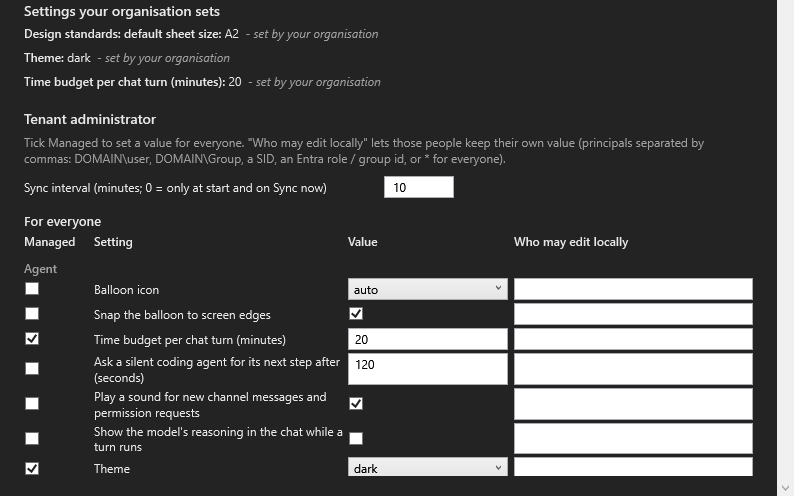
- For everyone — every setting that can be managed, grouped by its Settings page. Tick Managed and the value applies on every PC.
- Who may edit locally — users or groups that may keep their own value for that setting:
CORP\jane,CORP\CAD-Leads, a SID, an Entra role or group id, or*for everyone. The names the server has already seen are listed under the table. - Sync interval — minutes; 10 by default, 0 = only at start and on Sync now, otherwise 1 to 1440. PCs take a new interval at their next sync.
- Save to the organisation server — settings, grants and interval together. The result names the new version; your own PC applies it at once; everybody else within the interval. If another administrator saved first, the save is refused with their version and name — never a silent overwrite; click Reload and apply your change again. While the editor is open, a change another administrator saves (or a licence renewal) reaches every field you have not edited; a field you changed keeps your value and says “The organisation changed this to X since you started editing - Save to the organisation server overwrites it / Discard takes it”, with Discard beside it.
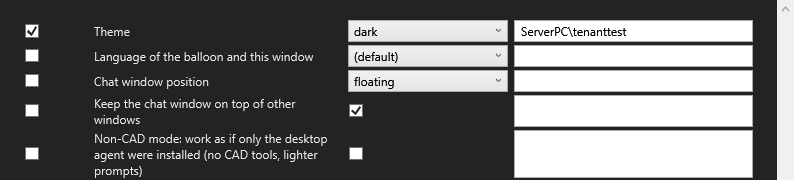
* for everyone.Libraries
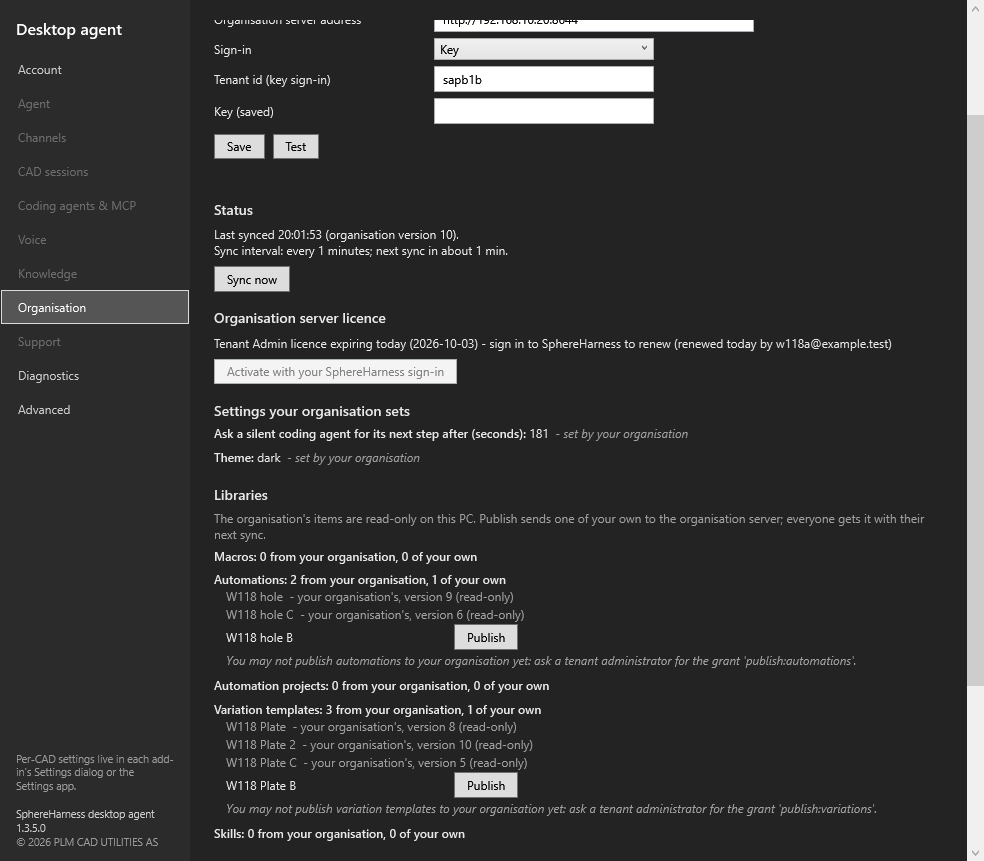
While a PC is enrolled, its macros, automation projects and skills are published to the organisation server, never to the SphereHarness account server: a macro with its Publish action (or ask the assistant to publish it), an automation project when design capture saves it. Settings → Organisation → Libraries lists, per library, the organisation's items (read-only, with their version) and your own items, each with Publish; the Variations dialog has Publish to organisation, and Settings → Knowledge → Libraries → Publish to organisation… leads to the block. Who may publish is a grant per library on the administrator's page (Publish macros, Publish automations, Publish projects, Publish variations, Publish skills); a refusal names the grant to ask for. A signed-in administrator publishes every library without a grant. To load a whole set at once (macros, automations, variation templates, skills), export a .sphereharness-pack on the PC that has them (Settings → Knowledge → Libraries → Export) and import it on the server with the install script's -ImportPack; importing never runs anything. On every PC the organisation's items are read-only and listed with the source organisation and their version; a local item with the same name shadows the organisation's one. An item you published yourself moves to the organisation's list in the Libraries block after the sync that follows the publish (with Publish still beside it, to send a new version); the result line under the block stays until your next publish.
Audit
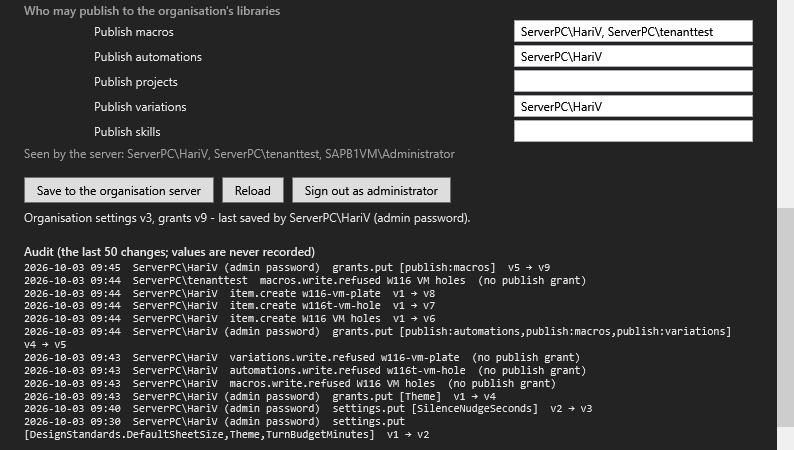
The last 50 changes: who, what, when, version from → to — settings and grant saves, publishes, removals, pack imports, and refused publishes (“macros.write.refused … (no publish grant)”). The audit never holds a value or a secret.
5. What a user sees
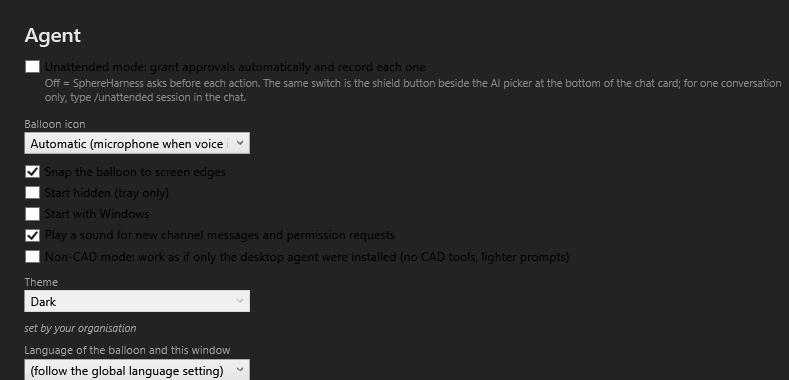
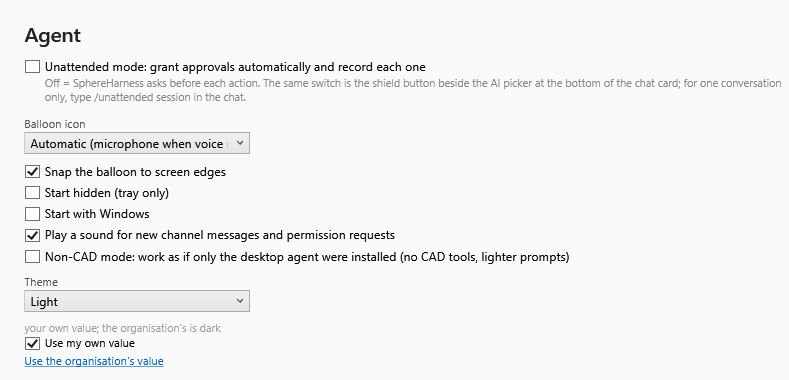
- Managed — greyed, with the badge “set by your organisation”. Asking the assistant to change it is refused by name: “Theme is set by your organisation (dark); ask a tenant administrator for permission to change it locally.”
- Granted — tick Use my own value; the page shows the organisation's value beside yours and a Use the organisation's value link.
- Unmanaged — as before.
- Settings → Organisation lists every setting your organisation sets for you, with its value and whether you may keep your own.
- The first time the organisation takes over a setting you had changed, a one-time notice names it and both values. Your own value is kept, unused, and returns if you are granted local editing.
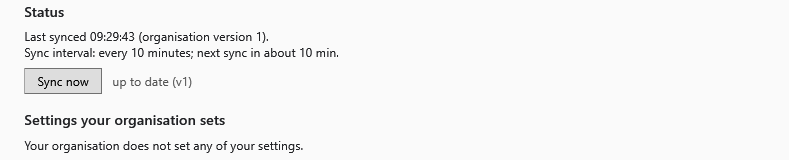
- Sync now is on Settings → Organisation and on the tray menu (Sync organisation settings now); the line says what changed (“v1 -> v2: settings v1 -> v2: Theme, TurnBudgetMinutes”, “macros: 1 updated”) or “up to date (v4)”; the Status block shows the time of the last sync.
- A sync that arrives while the Settings window is open applies the values at once (theme, hotkeys, the chat), but the window's own controls show the new state after the page is reopened or Sync now is clicked on it.
6. Settings that always stay on the PC
The program that builds an upload to the organisation server can only see the manageable settings, so these can never be in one:
| Kind | Examples | Why |
|---|---|---|
| Sign-in to SphereHarness | Account server address, access and refresh tokens, licence lease, device id | A personal account on a different server |
| Secrets | AI API keys, speech keys, channel bot tokens, the document-index key, MCP tokens and headers | A secret never leaves the PC; DPAPI keeps it for the Windows account |
| Shortcuts and window positions | Agent and voice hotkeys, chat and board positions, caches | Personal, per screen |
| Paths and ports on this PC | Coding-agent folder, NX / Teamcenter folders, preferred CAD version, knowledge folders, MCP port | They only exist on that PC |
| Personal consents | Start with Windows, unattended mode, coding-agent approval, channels and allow-lists, dialog rules | Only the person may give them; to force one, use Group Policy |
What can be managed: appearance and behaviour (theme, language, turn budget, log level, crash restart, Non-CAD mode…), the AI choice (own key or coding agent, provider, model, the company gateway address — the key stays local), voice, and knowledge and design standards (document index, context compression, primary standard, drawing projection, tolerance class, units, sheet size, GD&T, title block).
7. Offline and server down
Nothing stops. The PC keeps every value and library from the last successful sync and the CAD add-ins never wait. The status line and tray tooltip say when it last synced and since when the server has been unreachable, e.g. “Organisation settings: last synced 2026-10-03 11:14, server unreachable since 11:23 (timed out after 5.0 s). The values from the last good sync stay in use.” — connection refused when the server answers but the service is not running, timed out after N s (the seconds the attempt really waited) when nothing answers. Each attempt gives up after about 5 seconds and the timer keeps trying at the interval. The next successful sync catches up and clears the line.

8. When it does not work
| You see | Meaning and fix |
|---|---|
/v1/health does not answer from a PC | Service stopped, port 8644 blocked (firewall rule missing, or a network firewall), or a wrong address. On the server Get-Service SphereHarnessDocIndex; from the PC Test-NetConnection <server> -Port 8644 |
| The service stops right after start | Event Viewer → Application: the data folder is not writable by the service account, or a certificate named in the settings is missing |
| 401 | Sign-in not accepted: a wrong or replaced key, a PC off the domain, an Entra token for the wrong tenant or app |
| A save or publish refused with “not activated” or “expired” | The server has no valid Tenant Admin licence: a tenant administrator holding one clicks Activate with your SphereHarness sign-in (3b). Reads and members' PCs are not affected |
| 403 | Signed in but not allowed: not a reader; for a save, not a tenant administrator; for a publish, no publish grant for that kind. Group changes apply at the next Windows logon |
| A setting did not change on a PC | Is it ticked Managed? Does that person hold a grant and use their own value? When did the PC last sync? Click Sync now |
| Values are never refreshed | The interval is 0 (manual) — set a number of minutes |
| The service is Stopped after the server restarted | Its startup type must be Automatic (Delayed Start) — run the install script again to repair an older install. Event Viewer → System, Service Control Manager 7009 / 7000 = the start timed out during boot |
| The script stops with “TCP 8644 is already in use by …” | Another program listens on the port (often an older copy of the server): stop it, or install with -Port |
| The channel setup dialog will not send the company bot's secret | The organisation server is on plain http; a secret is never sent unencrypted. Run the install script on the server with -TwilioAuthToken / -TelegramBotToken / -SphereHarnessRelayToken (asked hidden), or put the server on https |
| A message to the company WhatsApp number gets “Your organisation’s SphereHarness server is not connected right now” | This server is stopped, cannot reach https://sphereharness.io outbound, or has no relay token — start the service, check outbound HTTPS, set the relay token again |
| The company bot answers “Your PC … is not reachable right now” | That person's PC is not collecting its messages: the desktop agent is not running, or the PC cannot reach this server |
| The company bot answers that the licence has expired | 3b: renew the Tenant Admin licence; every pairing is kept |
From another office, curl https://<name>/v1/health times out |
The router does not forward 443 to the server, or the server is a Hyper-V VM on the Default Switch (3d, route A step 3). install-organisation-server.ps1 -CheckReachability prints the public IP, the addresses and what listens |
From outside, 404 on everything but /v1/health |
The server switch is off: run the install script with -PublicHostName (route A) or -AllowRemoteMembers (route B) — 3d |
| "the organisation server key is not sent over unencrypted http to an internet address" | Key mode with an http:// address that is not on your network: use the server's https:// address (route A / B) or a Tailscale address (route C) |
| 403 "from the internet use its https:// address" | Key mode reached over plain http from outside (or through a tunnel with http://): members use https:// |
On a PC, %APPDATA%\CADCoPilot\tenant\state.json holds the last sync time, the tenant version, the interval, the last result and what started it, and after a failure the last error and since when the server has been unreachable. Deleting the tenant folder is safe: the next sync downloads it again.
See also
- Document Index: IT Setup — the same service's sign-in modes, certificate and groups
- Connections — company connections on the same service
- Macros and Variations
- What goes where